Installation
Set up X Bot in your Telegram group in three steps. Most teams complete the install in under three minutes; the wizard does the heavy lifting.
Quickest path —
@BWS_X_Bot→ add to group →/setup→ 🚀 Quick Start. The four prompts that follow are everything you need.
Gather These 5 Items Before You Start
Before you start, have these ready:
For a screen-by-screen tour of every option you'll configure below, see The /setup menu.
| You need | Where it comes from |
|---|---|
| A Telegram account | telegram.org |
| Admin rights on a Telegram group | Create one if you don't have it: Telegram → New Group |
| The X handle(s), cashtag(s), or keyword(s) you want to track | E.g. @your_username, $YOUR_TOKEN, "#YourCampaign" |
| (Optional) Project logo + URL list | For the public xbot.ninja showcase |
| (Optional) Time zone preference | Schedule is UTC; pick a UTC hour that lands when your community is most active |
Not sure which plan you'll need? Check Pricing — most teams start on the FREE tier (100 posts/month) and upgrade later.
If you're not sure which scenario applies to you, skim the 4 use cases on the Overview — pick the closest one and use its filter recommendation in step 2 below.
Step 1 — Add the bot to your group
- Open Telegram and search for @BWS_X_Bot.
- Add the bot to your group.
- Promote it to admin. No special permissions are required beyond default admin (the bot needs admin status purely so Telegram allows it to read group messages and post reports).
Group, not DM
The bot's analytics features only run in groups, not in private DMs. If you start a DM with @BWS_X_Bot you'll see /help and /buy work but most of the configuration menu won't.
Step 2 — Run /setup
In your group, type:
/setupThe bot replies with an interactive menu. Tap 🚀 Quick Start to open the four-step wizard.
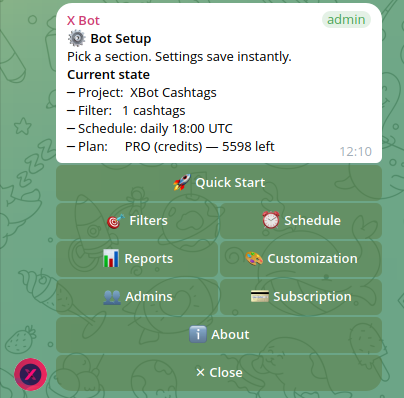
The wizard asks four questions in order:
| Step | Prompt | Examples |
|---|---|---|
| 1 | Project name | MyToken, KOL Campaign Q2, @your_username Performance |
| 2 | What to track on X | 📢 Accounts + handles, 💵 Cashtags + tickers, or 🔍 Keywords + phrases |
| 3 | When the bot should run | Pick a daily preset (09:00 / 14:00 / 18:00 / 22:00 UTC) or send a custom time |
| 4 | Done | Recap of what was saved |
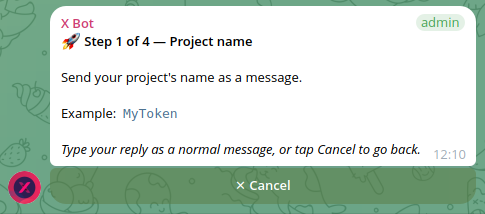
Skip and Exit are always available — a partly-completed wizard never blocks you, settings just stay at their defaults.
Why
/setup? It wraps every admin command into a clickable, edit-in-place interface so you don't have to memorise commands. Settings save instantly. Power users can still type slash commands directly — the two surfaces are equivalent and behaviour is identical. Full tour: The /setup menu.
Step 3 — Verify
When the wizard completes, open /setup → 📊 Reports → ⚡ Generate report now to ship an immediate report (the next scheduled report will run at the time you picked in step 2).
The bot posts the leaderboard image into the group within ~1–3 minutes. Smaller chats (handful of accounts, low post volume) finish faster; community chats with hundreds of posts to fetch can take 2–3 minutes.
Wait for the first scheduled run
After the manual Generate report now, the next automated run happens at your configured cron time. You'll get one report per fire — no double-posting.
Cost & credits
X Bot uses the official X API for all data fetching. Each chat starts on FREE; from there you can layer one or both paid paths:
| Plan | What you pay | What it covers |
|---|---|---|
| FREE | $0 | 100 posts/month from a hard cap. Bot pauses fetches at 100; resets the 1st of next month. |
| PRO subscription (Stripe) | $19/month + $0.02/post above 1 000/month (Stripe-metered) | Auto-renews. First 1 000 posts/month included as a free threshold (not a credit balance — there's no roll-over). |
| PRO credits (ETH) | $0.02/credit, packs of 1 000 / 2 000 / 3 000 / 4 000 / 5 000 / 10 000 / 50 000 / 100 000 | One-shot. Credits never expire. Tops up an existing balance. |
A chat can hold both PRO·sub and PRO·credits at the same time — per-fetch billing drains ETH credits first, then the subscription's monthly grant, then metered overage. See pricing for the full plan-transition matrix and the buying workflow.
Plan + balance always visible at /setup → 💳 Buy Credits. Designated admins receive a Telegram DM when credits hit 80% and again when fully exhausted.
Recommended next steps by use case
Pick the row that matches your scenario, then follow the linked Overview section for the full recipe:
| Scenario | What to add after the wizard | Detail |
|---|---|---|
| KOL agency tracking 5 KOLs | Cashtag + campaign hashtag refinement, 22:00 UTC schedule | Use case 1 |
| Project engaging community | Logo + URLs in 🎨 Customization for the public xbot.ninja card | Use case 2 |
| Solo KOL portfolio | Personal headshot + LinkedIn URL in Customization, share xbot.ninja URL with prospects | Use case 3 |
| Multi-client agency | /setup → 🎯 Filters → ⤴ Named filters → ➕ Add named filter — one per client | Use case 4 |
| Receiving X account posts in real time | /setup → 📡 X Posts Auto-relay → ➕ Add account | The /setup menu |
What gets configured
| Section in /setup | What you set | Why it matters |
|---|---|---|
| 🎯 Filters | Accounts, cashtags, keywords, mentions to track on X | Defines which posts the bot fetches |
| ⏰ Schedule | Time of day for the automated report | Bot runs the fetch + render on this cron |
| 📊 Reports & Period | Optional date window (e.g. competition period) | Constrains the report to a specific stretch |
| 🎨 Customization | Project name, description, logo, URLs, leaderboard weights and colors | Branding for the report image and the public xbot.ninja showcase |
| 👥 Admins | Who receives private DMs about credit / fetch issues | Operational visibility |
| 💳 Subscription | Plan, credits balance, upgrade entry point | Cost visibility and payment |
| 📡 Auto-relay | X accounts to forward into chat in real time (every 5 min) | Live updates between scheduled reports |
Public showcase (optional)
If your project meets the public listing thresholds (≥ 300 top score, ≥ 5 posts, ≥ 2 active users in the current month), it appears on xbot.ninja. Add the project metadata under /setup → 🎨 Customization (Name, Description, Logo, URLs).
Solo-KOL setups (single account) don't pass the "≥ 2 active users" rule and stay accessible only at their direct URL — that's by design.
Verifying the install
Most diagnostics are visible directly in /setup (every screen shows the chat's current state at the top). Quick sanity checklist:
| Check | How |
|---|---|
| Bot is admin | Telegram → group settings → Administrators |
| Tracking is configured | /setup → 🎯 Filters → see accounts/cashtags/keywords listed |
| Filter renders correctly | /setup → 🎯 Filters |
| Schedule is set | /setup (top of menu shows current schedule) |
| Credits available | /setup → 💳 Buy Credits |
| Manual report works | /setup → 📊 Reports → ⚡ Generate report now |
First report didn't appear — troubleshooting
If Generate report now doesn't produce a post within 3 minutes:
| Symptom | Likely cause | Fix |
|---|---|---|
| Bot DM says "no posts found" | Filter too narrow OR no recent posts matching | /setup → 🎯 Filters — check the literal X API query for typos. Try widening (drop the date period if set). |
| Bot DM says "credit exhausted" | FREE chat hit 100/month cap | Wait for next month, or /setup → 💳 Buy Credits → 💰 Buy to subscribe / buy a credit pack |
| Nothing happens, no DM | Bot not admin, OR webhook stopped | Re-promote the bot to admin. If still nothing, contact support. |
| Image renders but text empty | AI-commentary timed out | Re-run; transient. If it persists, contact support — the AI provider sometimes has rolling outages |
| Error "Unauthorized" / "Forbidden" | X API token issue (operator-side) | Contact support; nothing the user can fix |
Self-service diagnostics
/setup → ℹ️ About shows your chat ID, plan, and schedule on one screen. Copy that text into any support request — it shortens triage by ~80%.
FAQ — common install questions
Q. Can I install the bot in a Telegram channel (not a group)? No, only groups and supergroups. Channels don't allow message-reply context, which the report flow uses.
Q. Can I run the bot in a forum-style group with topics? Yes. Use /set_topic from inside the topic you want reports posted in. The bot posts to that topic going forward; if not set, it posts to the main thread.
Q. Does the bot need read access to my group's messages? The bot only needs to receive command messages (e.g. /setup). It doesn't read normal chat. The X-side data comes from the official X API, not from your Telegram messages.
Q. Can I track a private/protected X account? No — the X API only returns public posts. Tracking a protected account silently returns no results.
Q. Does removing the bot from the group delete my data? No. Settings, history, scores, and reports remain in the bot's database. If you re-add the bot to the same chat ID, everything resumes. If you want a clean teardown, ask support.
Q. Can I change the project name later? Yes — /setup → 🎨 Customization → 🏷 Name. Updates the next report and the public xbot.ninja URL slug.
Q. Why do I see different post counts than [tool X]? X Bot pulls directly from the official X API. Most third-party trackers scrape or extrapolate. We've found discrepancies of 20–50% in the wild. The X API number is the source of truth.
Q. How do I cancel?
- FREE chats: just remove the bot from the group.
- PRO subscription:
/setup→ 💳 Buy Credits → 🛠 Manage subscription opens the Stripe Customer Portal where you can cancel. Cancellation takes effect at the end of the current paid period. - PRO credits (ETH): credits don't auto-renew — the chat downgrades to FREE on its own when the balance hits zero. Remove the bot any time.
Need help?
See Support, or open /setup → ℹ️ About in your chat for diagnostic info to share with the team.
Read the X Bot overview for the full breakdown of what each audience — crypto projects, KOL agencies, solo KOLs, investors — gets out of the bot before you begin setup.