Check Your X Bot Credit Usage: Where Did My Posts Go?
See how many posts your Telegram group has used this month, what plan you are on, and spot silent fetch failures, using /get_credits and the Usage screen in /setup.
 by Nacho Coll
Nacho leads the Blockchain Web Services (BWS) team that builds and operates X Bot — the Telegram bot that turns X (Twitter) activity into leaderboards for crypto communities.
Sooner or later someone in your team asks the same question: “We’ve only been running this for two weeks. Where did the posts go?” Or the opposite one, which is more expensive: “Are we about to run out in the middle of the campaign?”
X Bot counts one credit per post it fetches from X for your reports. That makes usage easy to reason about once you can see it, and there are three places to see it from inside Telegram. This guide walks through each one, explains what every line means, and shows how to use the numbers to catch problems before your members notice an empty report.
If you want the pricing side of the story (what each plan costs and when to pick which), read X Bot Pricing: FREE, ETH Credits, or $19/Month. This article is only about reading your meter.
What Counts as a Credit#
A credit is spent when X Bot fetches a post that matches your filters. A scheduled report fetches the posts for your period, and that is what consumes the allowance. A run that finds no matching posts has nothing to count, but, as you will see below, it still shows up in your fetch attempts.
The allowances come from the plan your chat is on:
- FREE plan: 100 posts per month, a hard cap.
- PRO subscription: 1,000 posts per month included, then metered at $0.02 per post through Stripe.
- ETH credit pack: prepaid credits at $0.02 each that never expire.
Allowances are per chat, not per person. If you run several named filters in one group, they all draw from the same meter.
Method 1: The /get_credits Command#
The fastest check is a single command, sent in your group:
/get_creditsThe reply is short and depends on your plan.
On the FREE plan you see the edition (Free Edition), the Consumed Credits for the month, the Remaining number, and a one-line pointer to upgrade through /setup → 💳 Buy Credits → 💰 Buy credits / upgrade.
On a PRO plan paid with ETH credits you see PRO Edition, Consumed Credits and Remaining. Here “Remaining” is your unspent prepaid balance, which is what you want to watch if a campaign has a fixed budget.
On a PRO subscription you see PRO Edition and Consumed Credits only. There is no “Remaining” line because the subscription does not stop at a cap: it keeps fetching and bills metered usage above the included 1,000 posts. The number to compare against is therefore the 1,000 included in the plan, which you have to keep in your head.
The detail view#
Add the word detail and the command also returns a day-by-day list:
/get_credits detailBelow the summary you get a Daily Breakdown (current month, day:credits) section: one line per day of the current month in which posts were fetched, in the form day: credits. Days with nothing fetched are left out.
This is the view to open when the monthly total looks wrong. A spike on a single day usually has a simple explanation: someone ran a report manually, you widened a filter, or a KOL had a very active day. A flat steady line with one missing stretch tells you the schedule was paused or the filters matched nothing for a while.
Method 2: The Plan Summary in /setup#
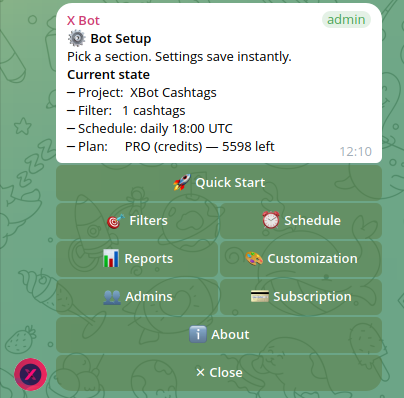
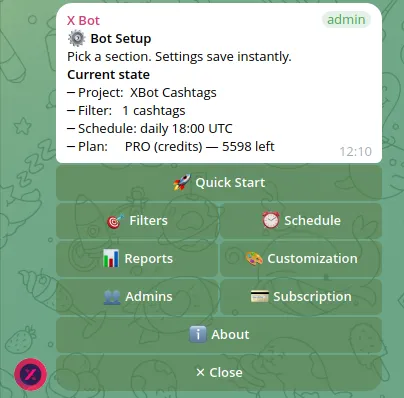
If your team prefers buttons to commands, open /setup and tap 💳 Buy Credits. The top of the screen is a read-only summary that changes with your plan:
- FREE: the plan name, Used this month as
used / cap(for example42 / 100), Remaining, and the date the allowance Resets. The reset date is the first day of the next month, in UTC. - PRO (credits): Credits remaining, and Total purchased once you have bought a pack.
- PRO (subscription): a confirmation that the subscription is active and a reminder that fetching is unlimited, with Stripe metering above 1,000 posts a month.
Underneath the summary are three buttons: 💰 Buy credits / upgrade, 🛠 Manage subscription and 📊 Usage this month. The first two hand you over to the same flows as the /buy and /subscription commands, so you can use whichever you remember.
Method 3: The Usage This Month Screen#
The third button, 📊 Usage this month, is the most useful for diagnosing problems because it shows two different numbers side by side:
- Posts fetched (month): how many posts have been pulled in the current month.
- Fetch attempts (month): how many times X Bot ran a fetch for your chat.
Directly below, the same pair is repeated for Today, labelled with the current day’s period.
The screen carries its own footnote, and it is the key to reading it: fetch attempts include runs that returned no matches or errored. That means the gap between attempts and posts tells a story.
| What you see | What it usually means |
|---|---|
| Attempts and posts both growing | Normal operation. |
| Attempts growing, posts flat at zero | Reports are firing but finding nothing: the filters are too narrow or your match mode is excluding everything. |
| Attempts flat, posts flat | Nothing is firing. Check ⏰ Schedule. |
| Posts jump sharply in a day | A manual run, a broad filter, or a very busy account. |
When the second row shows up, it is worth reading Empty X Bot Report? Match ANY vs Match ALL Filters Explained, since combining accounts, cashtags and keywords the wrong way is the most common cause.
If the screen shows “(no data)” for fetch attempts, the chat has not recorded any fetch yet for that period, which is normal for a brand-new setup.
Reading Your Numbers: Three Practical Habits#
1. Check mid-month, not at the end#
The FREE plan is a hard cap. When a chat is close to the monthly limit, X Bot adds a gentle nudge to the report. By then you have little room left. A quick /get_credits around the middle of the month tells you whether your pace fits.
Do the arithmetic once: divide the monthly allowance by the number of days, and compare with the daily breakdown. If you are spending 6 credits a day on the FREE plan, 100 credits lasts roughly 16 days, not a month. The fix might be a narrower filter, fewer scheduled reports, or a plan change. The cleaning up noisy reports guide shows how to stop paying credits for posts you do not care about.
2. Watch the remaining balance before a campaign#
If you buy an ETH credit pack for a time-boxed campaign, note the remaining number on day one and check it again after the first scheduled report. That one data point gives you the cost per report and lets you forecast whether the pack covers the whole campaign.
3. Use attempts as a health signal#
A chat that is quietly failing is more dangerous than one that is loudly failing. When credits run out, or a filter is invalid, X Bot sends private messages to your designated admins, as covered in What X Bot’s Admin Alerts Mean. The Usage screen is the complement: it lets you spot the quieter cases, such as a schedule that stopped or a filter that matches nothing, by comparing attempts with posts.
Managing a PRO Subscription#
If your chat is on the Stripe subscription, /setup → 💳 Buy Credits → 🛠 Manage subscription (or the /subscription command) is where you update the card, see billing history, or cancel. A few things surprise people:
- It moves to a private chat. In a group, X Bot tells you to continue in a direct message and sends you the instructions there. Open the bot’s private chat and send
/subscriptionto get the Stripe customer portal link. - Only the subscription owner can manage it. If a different admin bought the plan, other admins are told to contact the owner.
- A group without PRO gets a pointer to /buy. If you try
/subscriptionon a FREE chat, the bot says there is no subscription and suggests/buy.
So if your agency’s account manager bought the subscription, make sure you know who that is before the day you need to change the card.
When X Bot’s Meter Is Not Enough#
Be realistic about what these screens do. They tell you how much was fetched and how often, but they do not break usage down by filter or by KOL. If you need to know which client is eating the allowance in a multi-client group, the practical approach is to look at the daily breakdown after enabling or disabling a named filter for a day, or to give the heaviest client their own chat. Also, the FREE plan shows a limited slice of posts on each report, which is a presentation limit rather than a usage figure, and is explained in How to Pull an On-Demand X Report Without Waiting.
For anything that looks wrong after you have compared the numbers (credits consumed that you cannot explain, a balance that does not match a purchase), open /setup → ❓ Help & Support and include the numbers you saw. The troubleshooting guide covers the common causes first, and the pricing docs list the current plan terms.
Quick Reference#
| I want to know | Use |
|---|---|
| Posts used this month | /get_credits |
| Which days used the most | /get_credits detail |
| Plan, remaining and reset date | /setup → 💳 Buy Credits |
| Fetch attempts vs posts fetched | /setup → 💳 Buy Credits → 📊 Usage this month |
| Update card or cancel subscription | /subscription in a private chat with the bot |
| Add credits or upgrade | /buy |
Ready to track your community on X? Add @BWS_X_Bot to your Telegram group, run /setup, and your first report fires on the configured schedule. The FREE plan covers 100 posts/month — no card required.
About this article: This post was drafted with AI assistance using X Bot’s content workflow and reviewed by Nacho Coll, Founder & Principal at Blockchain Web Services (BWS), before publishing. Every product claim is checked against the live bot. Read how we use AI in our content. Spot an error? Reach us via
/setup→ ❓ Help & Support.
About the author
Nacho Coll
Founder & Principal, Blockchain Web Services
Nacho leads the Blockchain Web Services (BWS) team that builds and operates X Bot — the Telegram bot that turns X (Twitter) activity into leaderboards for crypto communities. He writes about KOL performance tracking, the X API, and running analytics bots for Telegram groups, from the operator side of the wire. Building on blockchain and decentralized infrastructure since 2019.
- x bot credit usage
- check telegram bot credits
- get_credits command
- x bot monthly post limit