Install X Bot in Your Telegram Group and Get Your First Report
Add X Bot to a Telegram group, promote it to admin, run Quick Start and generate your first X leaderboard report. Step-by-step walkthrough with fixes.
 by Nacho Coll
Nacho leads the Blockchain Web Services (BWS) team that builds and operates X Bot — the Telegram bot that turns X (Twitter) activity into leaderboards for crypto communities.
Most people who try X Bot want the same thing: a leaderboard image in their Telegram group showing who actually posted about their project on X, ranked by engagement. This walkthrough takes you from an empty group to that first report. It is written for community managers and KOL agency staff, not engineers. You will not type a single line of code.
If you want the reference version of the same material, the installation guide in the docs covers it in a more compact form. This post is the longer, talk-you-through-it version, including the places where first-time setups usually go sideways.
Before you start#
Gather four things, so you are not hunting for them halfway through:
- A Telegram group where you have admin rights. Create a new one if you only want to test.
- The thing you want to track on X: one or more account handles, a cashtag such as
$YOURTOKEN, or a keyword or campaign phrase. - A rough idea of when your community is most active. Report times are in UTC, so convert before you pick.
- Optionally, your project name, logo and links. You can add these later.
You do not need a credit card. A new chat starts on the FREE plan, which covers 100 posts per month. That is plenty for a first test and for small communities. If you expect more volume, how X Bot pricing works explains the paid options.
Step 1: add the bot and promote it to admin#
Open Telegram, search for @BWS_X_Bot and add it to your group. Then promote it to admin. You do not need to tick any special permissions beyond the default admin set. Telegram requires admin status for the bot to receive commands and post reports reliably in a group.
Two things to know here:
- X Bot works in groups and supergroups. Its configuration menu is built for a group chat, so starting a private conversation with it will not give you the full setup experience.
- The bot is not reading your members’ conversations to build the leaderboard. The data comes from X, not from Telegram messages.
Step 2: run /setup and open Quick Start#
In the group, send:
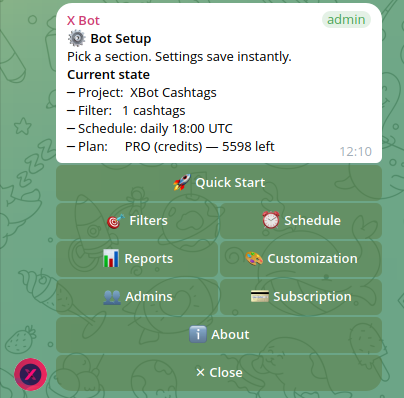
/setupThe bot replies with an interactive menu that edits itself in place as you tap through it. Settings save instantly, so there is no save button to forget. If your chat has no filters yet, the menu nudges you toward the first button, 🚀 Quick Start.
Tap 🚀 Quick Start. The wizard has four steps, and you can skip or exit at any point without breaking anything. Anything you leave undone simply stays at its default.
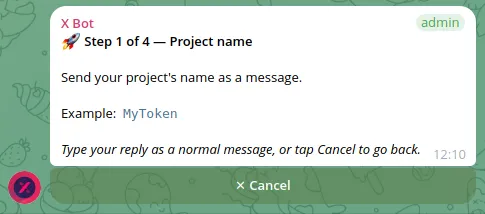
Step 1 of 4: project name#
The bot asks for your project name. Send it as a normal message. Something like MyToken or Q4 KOL Campaign works. This name appears on your report image, so pick something you would be happy to show a client or your community.
Step 2 of 4: what to track#
This is the step that decides whether your first report is useful, so take a minute over it. You choose one of three starting points:
- Accounts: send the handles you want to follow, for example
@handle_one @handle_two. This is the natural choice when you hired specific KOLs and want to see what they posted. - Cashtags: send tickers such as
$BTC $ETH. Good for a launched token. The cashtag tracking guide goes deeper. - Keywords: send words or phrases. Useful before a token exists, as covered in tracking your pre-launch community.
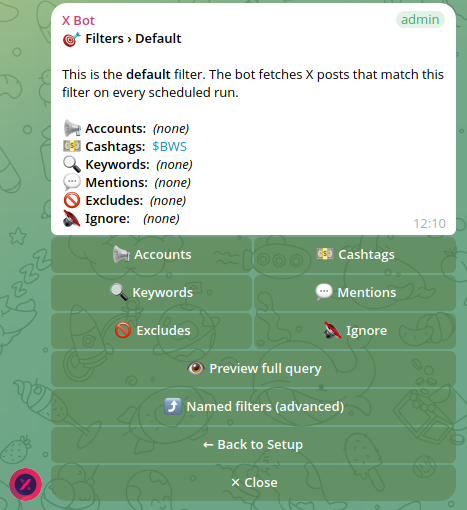
Start with one type. You can add the others later from /setup → 🎯 Filters, where you can also add mentions, excludes and an ignore list. Resist the urge to stack everything on day one: when criteria are combined, a very narrow setup can return an empty report, which is the most common first-run surprise.
Step 3 of 4: when to report#
The bot offers four daily presets: 09:00, 14:00, 18:00 and 22:00 UTC. Or send a custom time as HH:MM in 24-hour format, UTC. Pick a time that lands when your group is awake, because the leaderboard is partly a conversation starter.
You can change this later under ⏰ Schedule, including specific days of the week or a full cron expression. There is a 12-hour minimum interval between report fires. Custom report schedules covers the options.
Step 4 of 4: done#
The final screen recaps what was saved. Nothing more to answer. Your schedule is now live.
Step 3: generate your first report now#
You do not have to wait until the scheduled time to see something. Go to /setup → 📊 Reports and tap ⚡ Generate report now. The bot fetches matching X posts, scores them, renders the leaderboard image and posts it into the group. For a small setup, expect the image to arrive within a few minutes; a busy topic with many posts takes longer.
What you get is a ranked list of the top contributors, the best tweet of the period, and your project name. Scores come from engagement weights, and the defaults reward conversation over passive likes: likes 3, retweets 5, replies 8, quotes 10 and views 0.01. If that ordering does not suit your community, customizing score weights shows how to change it.
After this manual run, your normal scheduled report still fires at the time you picked, one report per fire.
If the first report is empty or missing#
This is the section most people actually need. Work through these in order.
The report says nothing matched. Open /setup → 🎯 Filters and read what is configured. Check handles and tickers for typos. If you combined several kinds of criteria, the way they are joined matters, and match ANY versus match ALL explains it. Also remember that only public X posts can be fetched, so a protected account will not appear.
Nothing happens at all. Confirm the bot is still an admin of the group in Telegram’s administrator list. Re-promote it if it is not.
You get a credit alert. The FREE plan has a hard cap of 100 posts per month, and fetching pauses when you reach it. Open /setup → 💳 Buy Credits to see your balance and options. What the admin alerts mean walks through each message.
The leaderboard is noisy. Retweets of your own team, bots and giveaway farmers can crowd the ranking. The excludes and ignore list fix this, as described in cleaning up noisy reports.
If you are stuck, /setup → ❓ Help & Support opens a ticket and replies reach you as a Telegram message. How support tickets work explains what to include.
What to configure after the first report#
Once the basics work, a few optional steps make the output look like yours:
- 🎨 Customization: add a logo, description and links, and set your leaderboard title and colors.
- 👥 Admins: designate the people who should receive private alerts about credits and fetch problems.
- 📡 X Posts Auto-relay: forward posts from chosen accounts into the chat as they are published, with up to about five minutes of latency.
- Named filters: if one group serves several campaigns, run one named filter per campaign.
The /setup menu guide documents every screen with screenshots.
When X Bot is the wrong fit#
Be honest with yourself about the match. X Bot is built around Telegram groups and periodic leaderboards. If you need deep audience demographics, sentiment analysis across millions of posts, or analytics for accounts you do not control and cannot name, a dedicated social-listening suite is the better tool. And if you track one or two accounts and a handful of posts a week, a spreadsheet may be all you need; the comparison in X Bot vs manual spreadsheet tracking shows where the break-even sits.
For the everyday case, a community that wants a regular, shared, visible scoreboard of who is showing up on X, the install above is genuinely a few minutes of work.
Ready to track your community on X? Add @BWS_X_Bot to your Telegram group, run /setup, and your first report fires on the configured schedule. The FREE plan covers 100 posts/month — no card required.
About this article: This post was drafted with AI assistance using X Bot’s content workflow and reviewed by Nacho Coll, Founder & Principal at Blockchain Web Services (BWS), before publishing. Every product claim is checked against the live bot. Read how we use AI in our content. Spot an error? Reach us via
/setup→ ❓ Help & Support.
About the author
Nacho Coll
Founder & Principal, Blockchain Web Services
Nacho leads the Blockchain Web Services (BWS) team that builds and operates X Bot — the Telegram bot that turns X (Twitter) activity into leaderboards for crypto communities. He writes about KOL performance tracking, the X API, and running analytics bots for Telegram groups, from the operator side of the wire. Building on blockchain and decentralized infrastructure since 2019.
- install x bot telegram
- telegram bot setup walkthrough
- first x leaderboard report
- x bot quick start