How X Bot Support Tickets Work: From /setup to Telegram DM
Open a support ticket from X Bot's /setup menu, track its status in My tickets, and get engineer replies as a Telegram DM, without ever leaving the chat.
 by Nacho Coll
Nacho leads the Blockchain Web Services (BWS) team that builds and operates X Bot — the Telegram bot that turns X (Twitter) activity into leaderboards for crypto communities.
A community manager mid-campaign notices the leaderboard looks wrong — a KOL’s post that should clearly be the “best tweet” of the day isn’t showing up. Or a token-launch coordinator gets billed for more posts than expected and wants a human to look at it. Or someone just wants a feature that doesn’t exist yet.
None of that is a docs problem. The setup menu reference and troubleshooting guide cover “how do I configure X” — they don’t cover “something specific to my chat is wrong, please look at it.” For that, X Bot has a support ticket system built directly into /setup, so filing an issue doesn’t mean leaving Telegram, finding an email address, or waiting for a support portal to load.
This post walks through how it actually works: opening a ticket, what happens after you send it, how replies reach you, and what to expect (and not expect) from the response.
A concrete example#
Picture an agency running three client campaigns out of one Telegram group using named filters. Halfway through the month, the account manager notices one client’s report stopped including a KOL who was definitely still posting. Before assuming the bot is broken, they check the obvious things: the filter still lists the handle, the schedule is still firing, nothing in troubleshooting matches. That’s the point where a ticket makes sense — something specific to this chat’s data looks wrong, and no amount of re-reading the docs is going to explain it.
They open /setup → ❓ Help & Support → ➕ New ticket and describe exactly what they’re seeing: the handle, the named filter it’s under, and the date the posts stopped showing up. A minute later they have a ticket id and can get back to the client call. The reply — when it comes — arrives as a DM, not a message dropped into the client-facing group, so the back-and-forth about “was this a retweet the filter correctly excluded, or an actual bug” stays between the agency and BWS.
Opening a ticket#
From any chat where X Bot is set up, open /setup → ❓ Help & Support. The screen explains what it’s for in plain terms: billing questions, bot misbehavior, feature requests — anything not already covered in the documentation.
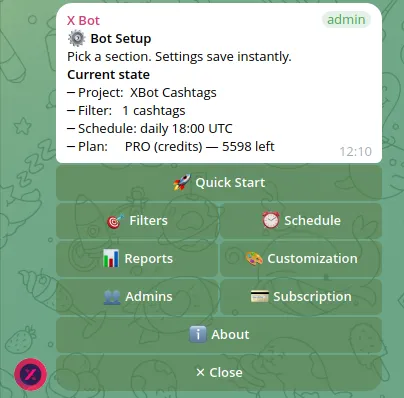
Tap ➕ New ticket and the bot asks you to send a single message describing the issue. There’s a floor and a ceiling on that message: at least 10 characters (so “help” alone gets rejected with a prompt to say more) and at most 2,000 (long enough for a real description, not long enough to paste an entire chat log). If your message is too short, the bot tells you and lets you try again; if it’s too long, it asks you to trim it or split the rest into a second ticket.
Send something that actually describes the problem — what you expected, what happened instead, and roughly when. “Leaderboard is wrong” gives a support engineer nothing to work with; “yesterday’s report picked a low-engagement tweet as best tweet even though @handle’s thread from the same day had way more replies” gives them somewhere to start.
Once the bot accepts the message, it confirms with a ticket id — something like TK-1758067200000-a1b2 — and a short note: when an engineer replies, you’ll get a Telegram DM from the bot. That’s the whole submission flow. No forms, no separate login, no email round-trip.
What happens after you send it#
Behind the scenes, the ticket is saved with your chat, your Telegram user id and username, and — if your chat has one set — the project name from 🎨 Customization, so a support engineer sees “Ticket from Acme Token Launch” instead of an anonymous chat id. The team gets notified the moment a new ticket lands.
An engineer reviews it and replies. When they do, the reply is sent as a Telegram direct message from the bot to the person who opened the ticket — not posted back into the group chat, so a billing question doesn’t turn into something the whole community can read.
That DM-based delivery is convenient, but it has one obvious failure mode: it only works if the bot is allowed to message you directly. If you’ve never started a conversation with @BWS_X_Bot in a private chat, or you’ve blocked the bot, or your Telegram privacy settings block messages from bots you haven’t initiated contact with, the DM can bounce. X Bot has a fallback for exactly that case.
The fallback: My tickets#
Back in /setup → ❓ Help & Support, the 📋 My tickets button shows your own tickets, newest first — up to the 20 most recent. Each row shows a status icon, the ticket id, the date it was opened, and how many replies it has. Tap any ticket to read the full thread: your original message and every reply after it, in order, admin responses clearly labeled apart from your own follow-ups.
This means a bounced DM isn’t a lost reply — it’s just a reply you have to go check for instead of getting pushed to you. It’s worth checking My tickets occasionally after you’ve opened something, especially if you’re not sure the bot can DM you.
Tickets move through four statuses as they’re worked:
- Open — just submitted, not yet picked up.
- In progress — an engineer is actively looking at it.
- Resolved — the issue has been addressed.
- Closed — the ticket is done, whether or not it needed a fix.
You’ll see the current status both in the ticket list and on the detail screen, so you don’t have to guess whether anyone has looked at it yet.
One more detail worth knowing if you run an agency chat with several admins: tickets are private to the person who opened them. If another admin in the same group tries to view your ticket by its id, the bot checks that the requester matches the original submitter and refuses if it doesn’t — so a billing dispute one account manager raises with BWS doesn’t become visible to every other admin in the chat just because they’re in the same group.
Writing a ticket that gets resolved faster#
The 10-character floor exists to stop empty or one-word tickets, not to set a target. A vague ticket gets a vague first reply asking for the details you could have included the first time, which just adds a DM round-trip before anyone can actually help. A few things worth including in that single message:
- What you expected vs. what happened. “The best tweet should have been X but the report picked Y” is actionable. “Best tweet is wrong” is not.
- When. Which report, which date, roughly what time. Reports and tickets both key off timestamps, so a date narrows the search immediately.
- Which chat, if it’s ambiguous. If you manage more than one X Bot chat, say which project or client the issue is on — the ticket already carries your project name from Customization when it’s set, but it doesn’t hurt to say it again if the name is generic.
- Anything you already tried. If you already checked the filter, the schedule, or the troubleshooting doc, say so — it saves the engineer from suggesting the same first step back to you.
None of this is required — the bot will accept a dashed-off one-liner as long as it clears 10 characters — but a specific first message is usually the difference between one reply that solves it and three DMs going back and forth to get to the same place.
What a ticket is for — and what it isn’t#
Use a ticket for things that need a person: a bug specific to your chat’s data, a billing discrepancy, a feature you wish existed, anything where the documentation genuinely doesn’t have the answer. It’s the same idea covered from the access-control side in adding team members as X Bot admins — support tickets are personal to whoever opens them, admin roles are shared across the group, and the two systems are deliberately separate.
Don’t use a ticket as a first stop for questions the docs already answer. If you’re unsure how the FREE plan, the PRO subscription, and ETH credit packs interact, how X Bot pricing works probably answers it faster than waiting on a reply. If a command isn’t responding the way you expect, the troubleshooting doc covers the common cases first.
And be honest with yourself about response time: this is a ticket queue, not live chat. There’s no published SLA promising a reply within a specific number of hours. For anything genuinely urgent — a scheduled report that never fires the morning of a launch, for instance — a ticket is still the right tool, but don’t treat it as an instant channel. If your chat is running a live campaign with a hard deadline, file the ticket as soon as you notice the problem rather than waiting to see if it resolves itself.
A quick reference#
- Open a ticket:
/setup→ ❓ Help & Support → ➕ New ticket → send one message (10–2,000 characters). - Ticket id format:
TK-<timestamp>-<random>, shown immediately after submission. - Replies: delivered as a Telegram DM from the bot to whoever opened the ticket.
- If the DM doesn’t arrive: check
/setup→ ❓ Help & Support → 📋 My tickets — shows your 20 most recent tickets and full reply threads. - Statuses: open, in progress, resolved, closed.
- Privacy: tickets are visible only to the person who opened them, even to other admins in the same chat.
- Use it for: billing questions, bugs specific to your chat, feature requests. Check the docs first for setup and configuration questions.
That’s the whole loop: type an issue once, get a ticket id, and either get a DM or go check My tickets — no email address required, no separate account to create.
Ready to track your community on X? Add @BWS_X_Bot to your Telegram group, run /setup, and your first report fires on the configured schedule. The FREE plan covers 100 posts/month — no card required.
About this article: This post was drafted with AI assistance using X Bot’s content workflow and reviewed by Nacho Coll, Founder & Principal at Blockchain Web Services (BWS), before publishing. Every product claim is checked against the live bot. Read how we use AI in our content. Spot an error? Reach us via
/setup→ ❓ Help & Support.
About the author
Nacho Coll
Founder & Principal, Blockchain Web Services
Nacho leads the Blockchain Web Services (BWS) team that builds and operates X Bot — the Telegram bot that turns X (Twitter) activity into leaderboards for crypto communities. He writes about KOL performance tracking, the X API, and running analytics bots for Telegram groups, from the operator side of the wire. Building on blockchain and decentralized infrastructure since 2019.
- x bot support tickets
- telegram bot help support
- how to contact x bot support
- x bot ticket status