Adding X Bot Admins Without Losing Group Ownership
Give your team access to manage X Bot campaigns without handing over full Telegram group ownership. Here is how the Admins menu works and who should get access.
 by Nacho Coll
Nacho leads the Blockchain Web Services (BWS) team that builds and operates X Bot — the Telegram bot that turns X (Twitter) activity into leaderboards for crypto communities.
Most agencies start with one person running the Telegram group: they added the bot, they own the group, they ran /setup. That’s fine for a solo operator. It stops being fine the moment you hire a second campaign manager, bring on a VA to keep filters current, or need someone to cover schedule changes while you’re traveling.
The obvious fix — make them a Telegram group admin — is also the wrong fix. Telegram group admin rights are broad: they can remove members, change the group name and photo, pin messages, delete other people’s posts, and touch every setting Telegram itself exposes. Handing that over just so someone can edit a cashtag filter is giving away far more control than the job requires.
X Bot has a narrower answer: the 👥 Admins menu inside /setup. It’s a separate permission layer from Telegram’s own admin system, scoped specifically to bot configuration. This post walks through what it unlocks, what it doesn’t, and how to think about who should get it.
What “bot admin” actually means#
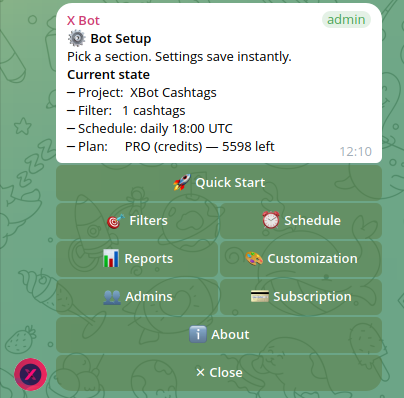
Open /setup in your tracked group and you’ll see the main menu — 🎯 Filters, ⏰ Schedule, 📊 Reports, 🎨 Customization, 👥 Admins, 💳 Buy Credits, 📡 X Posts Auto-relay, ❓ Help & Support.
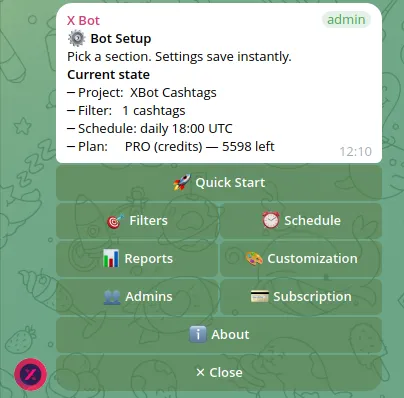
Anyone the bot recognizes as an admin can walk into any of these sections. That means a bot admin can:
- Add or remove tracked accounts, cashtags, keywords, and named filters under 🎯 Filters
- Change the report cron, switch presets, or set a custom schedule under ⏰ Schedule
- Edit project name, logo, description, leaderboard colors, and score weights under 🎨 Customization
- Buy ETH credit packs or manage the PRO subscription under 💳 Buy Credits
- Turn on 📡 X Posts Auto-relay for specific accounts and adjust daily caps
- Open and read replies to support tickets under ❓ Help & Support
What bot admin status does not touch: Telegram’s own group settings. A bot admin can’t remove a person from the Telegram group, can’t rename the chat, can’t change who owns it, and can’t touch any other bot or integration you have running in the same chat. The two permission systems are completely separate — X Bot only ever sees “is this Telegram user allowed to run /setup commands,” nothing more.
That separation is the whole point. It lets you give someone real, working access to the bot’s configuration without also making them a de facto co-owner of the group itself.
Who typically needs this#
A few real situations where the 👥 Admins menu earns its keep:
An agency onboarding a new campaign manager. You’ve hired someone to run day-to-day KOL tracking for a client. They need to add and remove tracked accounts as the roster changes, adjust the schedule if the client wants an extra report during a launch week, and read support replies if something breaks. They don’t need — and shouldn’t have — the ability to remove the client’s own team members from the shared Telegram group.
A token project handing config access to a community manager. The founder set up the bot, configured the default filter, and wired the schedule. Now a community manager is taking over day-to-day upkeep: swapping cashtags after a rebrand, tuning score weights, updating the leaderboard title. The founder keeps Telegram group ownership; the community manager gets bot admin.
Coverage during time off. If you’re the only bot admin and you’re offline for a week, nobody can react to a filter that needs updating or a support reply that needs following up. Adding a second trusted admin is cheap insurance — see how multi-client agencies structure a single tracked chat for a related pattern of spreading responsibility without spreading chats.
Adding an admin#
From /setup → 👥 Admins, an existing bot admin can add a new one. The person being added needs to already be a member of the tracked Telegram group — X Bot adds them as a bot admin, it doesn’t add them to the group itself. Removal works the same way: any current bot admin can remove another.
There’s no approval workflow and no notification step beyond whatever you communicate directly — if you add someone, they have full access the moment it’s confirmed. That’s worth saying out loud before you add anyone: don’t add a name to this list the way you’d add a read-only viewer to a shared doc. Bot admin is a real key to the configuration, not a spectator badge.
Offboarding: removing access when someone leaves#
The flip side of adding admins quickly is remembering to remove them just as quickly. When a contractor’s engagement ends, or a team member moves to a different client, their bot admin access doesn’t expire on its own — it stays active until another admin removes it from the same 👥 Admins menu.
This is easy to forget precisely because it’s easy to set up. Adding an admin takes a few taps and rarely comes with a follow-up reminder to revisit it later. If your agency runs several client chats with rotating staff, it’s worth treating “review the admin list” as a normal step in offboarding a contractor, right alongside revoking their access to shared drives or client Slack channels — not an afterthought that only happens if someone notices a stale name months later.
A simple habit that scales: whenever you onboard someone as a bot admin, note it in whatever tool you already use to track team access (a shared doc, an HR system, even a pinned message in an internal chat). Then when that person’s engagement ends, the removal step is already on a checklist instead of relying on memory.
Why this beats sharing one shared login#
Some smaller teams solve the “multiple people need access” problem by literally sharing one person’s Telegram account and phone number — logging in and out of the same session, or forwarding two-factor codes around. It works, technically, but it erases any sense of who actually made a given change. If a filter breaks the week before a launch, “who touched 🎯 Filters last” becomes a group chat archaeology exercise instead of a quick check.
Because each bot admin acts as their own Telegram user, X Bot’s admin model avoids that problem by default — every configuration change is still tied to whichever real person made it, even though the bot itself doesn’t currently expose a visible audit log of who changed what. If your team is still sharing a single Telegram login to work around access limits, adding real admins is a low-effort fix that also removes the security risk of passing one account’s credentials around a growing team.
The honest limitation: it’s all-or-nothing#
Here’s the tradeoff worth knowing before you lean on this heavily: X Bot’s admin model today doesn’t have tiers. There’s no “can edit filters but not schedule,” no “can view reports but not touch billing,” no read-only mode. Every bot admin gets the same full set of menus.
For a two- or three-person team this is rarely a problem — if someone is trusted enough to touch the bot at all, they’re usually trusted with all of it. It starts to matter more for larger agencies running many client accounts through one chat, where you might genuinely want a junior team member to see reports and adjust filters but not touch 💳 Buy Credits or the PRO subscription. If that’s your situation, the honest answer right now is: don’t add people you wouldn’t trust with the billing menu specifically, since you can’t carve it out separately. If per-section permissions matter enough to your workflow, that’s exactly the kind of thing worth raising through ❓ Help & Support — it’s useful signal for what to prioritize next.
A smaller team doesn’t need this at all#
If you’re a solo KOL or running a single small community chat by yourself, this whole feature is worth ignoring. Adding a second bot admin only makes sense once there’s a second person who actually needs to walk into /setup and change something. Don’t add a co-founder or a client contact as a bot admin just because it feels like good practice — every admin is someone who can change your filters, your schedule, and your billing. Add access when there’s a job that requires it, not before.
If you do want a client or stakeholder to see results without touching configuration, the better path is usually the public dashboard at xbot.ninja (once the chat clears the visibility thresholds) or direct-URL access below that — not a bot admin seat. Bot admin is for people doing the configuration work, not people checking the numbers.
Setting this up alongside the rest of /setup#
If your team is new to the menu structure generally, it’s worth reading why we redesigned /setup from 50 slash commands into one menu — the whole interface, including 👥 Admins, is built around the same inline-keyboard pattern, so once one section feels familiar the rest follow the same shape. And the official reference for every menu, including a walkthrough of the admin flow, lives in the setup menu docs. If something doesn’t behave as expected after adding an admin, the support docs cover the ❓ Help & Support ticket flow in more depth.
Getting the access model right early — one owner, a small number of deliberately added bot admins, everyone else viewing the public dashboard — saves you from either bottlenecking every filter change through one person or handing out Telegram group ownership more widely than you meant to.
Ready to track your community on X? Add @BWS_X_Bot to your Telegram group, run /setup, and your first report fires on the configured schedule. The FREE plan covers 100 posts/month — no card required.
About this article: This post was drafted with AI assistance using X Bot’s content workflow and reviewed by Nacho Coll, Founder & Principal at Blockchain Web Services (BWS), before publishing. Every product claim is checked against the live bot. Read how we use AI in our content. Spot an error? Reach us via
/setup→ ❓ Help & Support.
About the author
Nacho Coll
Founder & Principal, Blockchain Web Services
Nacho leads the Blockchain Web Services (BWS) team that builds and operates X Bot — the Telegram bot that turns X (Twitter) activity into leaderboards for crypto communities. He writes about KOL performance tracking, the X API, and running analytics bots for Telegram groups, from the operator side of the wire. Building on blockchain and decentralized infrastructure since 2019.
- telegram bot admin roles
- agency team access management
- x bot admins
- multi-user bot management