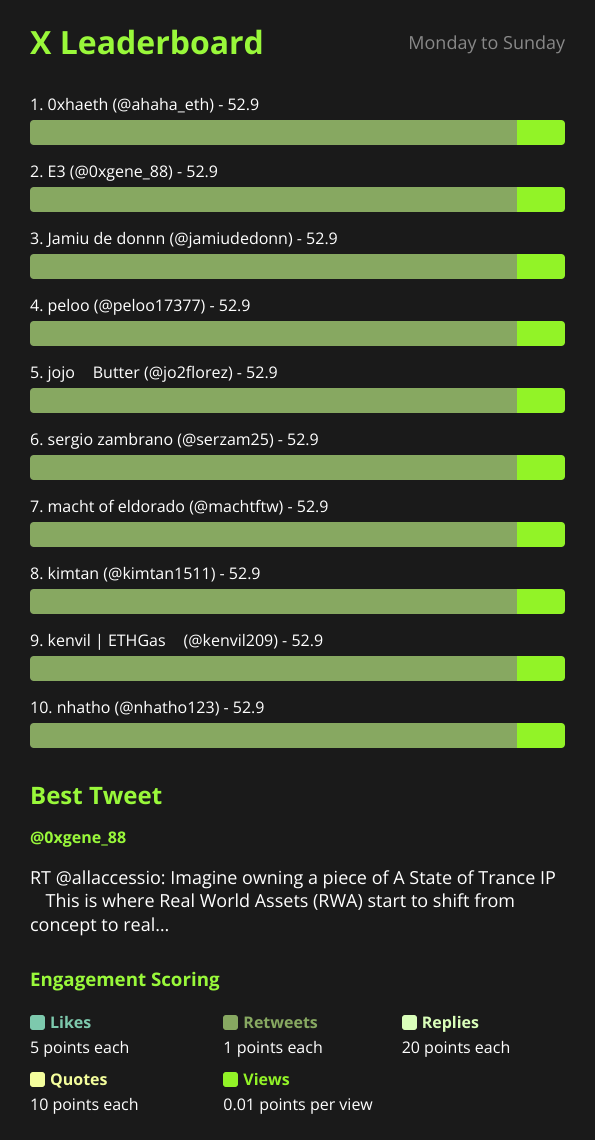
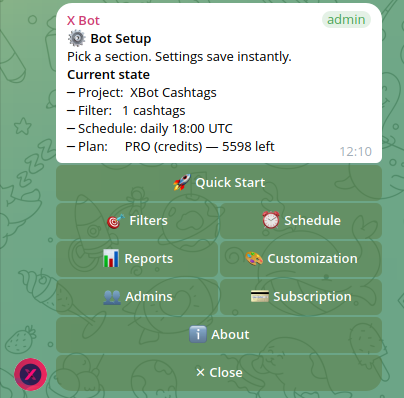
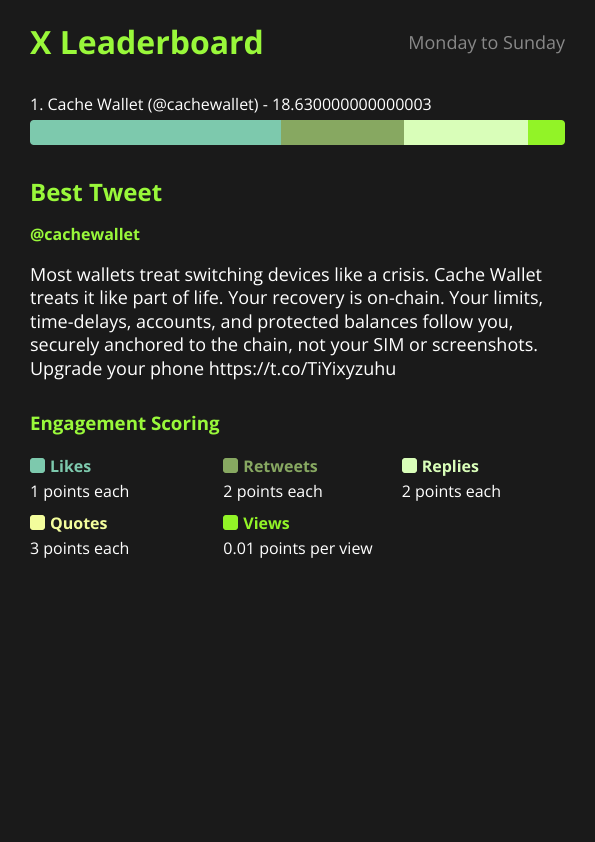
White-Labeling X Bot Reports for Client Delivery
Brand X Bot's leaderboard reports with your agency's name, logo, colors, and section titles before a client ever sees them. Every branding option, walked through.
 by Nacho Coll
Nacho leads the Blockchain Web Services (BWS) team that builds and operates X Bot — the Telegram bot that turns X (Twitter) activity into leaderboards for crypto communities.
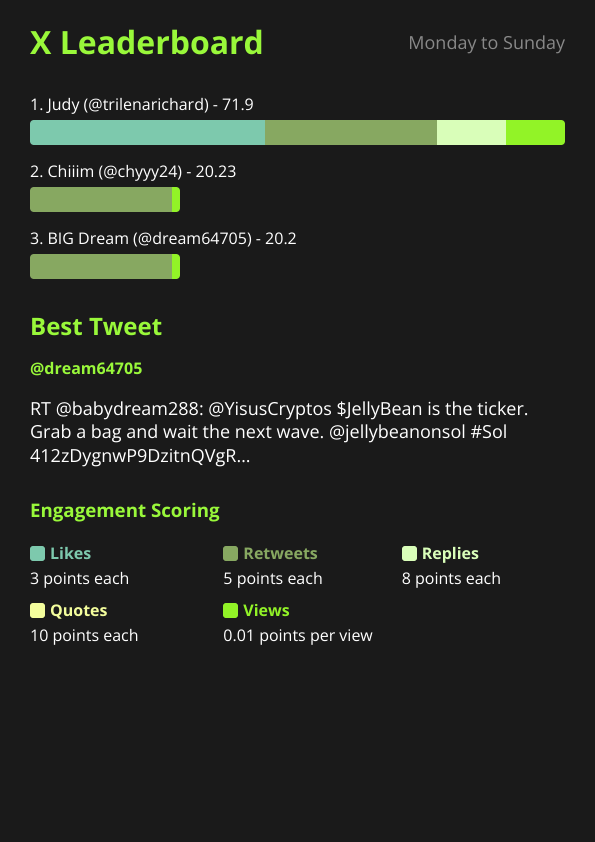
A report is often the only artifact a client ever sees from a KOL campaign. If it lands in their Telegram group looking like a bot’s out-of-the-box default — no logo, a generic title, the stock accent color — it reads like a free tool bolted onto the campaign, not a paid deliverable. Worse, it’s the same look every other chat running the bot gets, so nothing distinguishes “this is your agency’s work” from “this is what happened when nobody touched the settings.”
That’s a branding problem, and it’s an easy one to fix. Every visual element of an X Bot report — the project identity, the color of each metric bar, the wording and color of every section heading, even how many rows show — is configurable from the same /setup menu you already use to run the bot. None of it requires design work or a second tool; it’s a handful of menu screens, done once per client chat.
This is a practical walkthrough of every branding option, what each one actually changes on the rendered report, and one honest limitation agencies should know before building a workflow around it.
Where branding lives: 🎨 Customization#
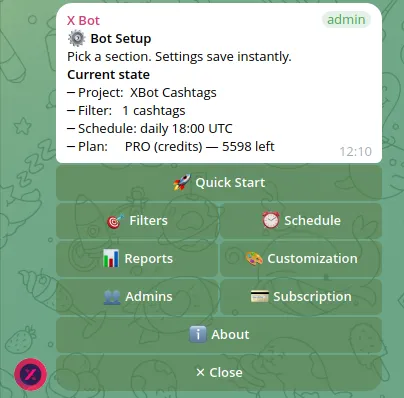
Open /setup and go to 🎨 Customization. This screen covers your project’s identity — the fields that appear on the report and on the public dashboard card if the chat ever qualifies for one (more on that below):
- 🏷 Name — up to 100 characters. This is the project name shown alongside the report.
- ✏️ Description — up to 280 characters, a one-line summary.
- 📝 Long description — up to 2,000 characters, for a fuller project blurb.
- 🖼 Logo — send a photo (not a file) and the bot resizes it and uploads it to the CDN. Square, 512×512 or larger, PNG with a transparent background works best.
- 🔗 URLs — website, socials, docs, whatever’s relevant. Enter them space- or comma-separated.
One detail worth knowing if you’re used to the legacy slash commands: /set_project_urls (typed directly) auto-adds https:// to anything missing a protocol, but the 🔗 URLs screen in the menu does not — it only accepts entries that already start with http:// or https:// and silently drops anything that doesn’t. Typing example.com into the menu screen gets rejected as “no valid URLs found”; typing https://example.com works. Small thing, but it’s the kind of gotcha that wastes five minutes if you don’t expect it.
None of the rest requires touching a slash command directly — the menu wraps the same settings /set_project_name, /set_project_logo, and friends have always written, so if you’re scripting setup for many chats, the old commands still work identically and the logo upload state (waiting_for_project_logo) is shared between both paths.
These same five fields are what render on the public xbot.ninja dashboard card once a chat clears the visibility thresholds (see Putting Your Project on the Public X Bot Dashboard) — so branding the project once through 🎨 Customization covers both the in-chat report and the public link, if you use it.
Where the report’s look lives: 📈 Leaderboard customization#
Identity is one layer. The report image itself — the bars, the section headings, how many rows show — is a separate sub-menu: 🎨 Customization → 📈 Leaderboard customization.
Colors. 🎨 Colors takes five hex values, one per scored metric: likes, retweets, replies, quotes, views. If you’ve never touched this, the report renders with #7dc9ad / #87a861 / #d9feb9 / #f3fd9c / #92f327 — a green-toned palette baked into the report generator itself. Swap all five to match a client’s brand kit and every future report picks it up automatically; no need to re-send anything for it to take effect on the next scheduled fire. Shorthand 3-digit hex (#0f0) works alongside full 6-digit values (#00ff00) — the validator accepts either, so there’s no need to expand a brand kit’s shorthand codes by hand.
A concrete example: if a client’s brand color is a deep blue, sending #1a2b6e #2f4bb8 #4d6fd8 #7d97e6 #b3c4f0 as the five values (darkest for the highest-volume metric, lightest for the rarest) gives every bar in the report a consistent blue gradient instead of the default green, with no other setting changed.
Top count. 🔢 Top count controls how many users show in the leaderboard, from 1 to 10. Leave it unset and the report shows 10. Tightening it to 5 or fewer makes sense for a small hired-KOL roster where showing everyone matters more than showing a long tail; loosening it isn’t possible past 10 — that’s a hard ceiling on the report layout, not a configuration gap.
Section titles. Three headings can be renamed and recolored independently: 📛 Top title (default text “X Leaderboard”), 🥇 Best-tweet title (default “Best Tweet”), and 📊 Engagement title (default “Engagement Scoring”) — each defaulting to the same accent color, #99f83a, unless you set one. Renaming “X Leaderboard” to a client’s campaign name, e.g. “Q4 Ambassador Rankings,” is often the single change that makes a report feel purpose-built rather than templated.
For each title, the format in the menu is title text|#hexcolor (the color is optional — omit it to keep the section’s current color and just change the text). Titles are capped at 60 characters.
Points live in this same sub-menu (🏆 Points) but they change scoring, not appearance — how many points a like, retweet, reply, quote, or view is worth. That’s a different lever with its own tradeoffs; see Customizing Your X Bot Leaderboard: Score Weights Explained if you’re tuning ranking behavior rather than branding.
The one limit worth knowing: branding is per-chat, not per-client#
If your agency runs multiple client campaigns through named filters inside a single Telegram group (see Tracking Multiple Client Campaigns in One Telegram Group), know this going in: 🎨 Customization and 📈 Leaderboard customization are chat-level settings. One logo, one color palette, one set of section titles — shared across every named filter firing in that chat.
That’s fine when the “client” is really just internal campaign tracking, or when a shared agency identity across all client reports is exactly what you want. It’s a problem the moment two clients expect their own look. There’s no per-named-filter branding today — if distinct branding per client matters, that means one Telegram group per client, each with its own /setup pass, rather than one group with several named filters. Decide which model you’re in before you invest time in a branding pass; retrofitting it later means re-doing the setup in a new chat, not just re-running a command.
Why it’s worth the ten minutes#
None of this changes what the report measures — a branded report and a default one score the exact same posts the exact same way. What changes is who the report looks like it came from. For a solo KOL building a track record (see X Bot for Solo KOLs), a consistent look across weeks of reports reads as a maintained system rather than a one-off screenshot. For an agency, it’s closer to what a client is actually paying for: not just the tracking, but the presentation of the tracking. A prospective client comparing two agencies’ sample reports side by side notices a matched logo and color scheme before they notice the scoring methodology.
It also compounds. Because 🎨 Customization is set once per chat and every subsequent scheduled report inherits it automatically, the branding work doesn’t repeat per report the way, say, writing campaign copy does. Set the five colors and the logo once, and every report for the life of that chat carries them — daily, weekly, however the schedule is configured.
The full settings reference, including every field covered here, lives in the setup menu documentation if a screenshot-by-screenshot walkthrough is more useful than this article’s summary — and the product overview covers how reports fit into the bot’s broader flow if you’re setting this up before ever having seen a report fire.
A first-time white-label checklist#
For a new client chat, a reasonable order to work through 🎨 Customization in:
- 🏷 Name and ✏️ Description — the client’s project name and one-liner, not “X Bot” or a placeholder.
- 🖼 Logo — square PNG, transparent background, sent as a photo.
- 🔗 URLs — the client’s site and socials, if you want them referenced.
- 📈 Leaderboard customization → 🎨 Colors — five hex values matching the client’s brand kit (or your agency’s, if that’s the identity you’re presenting).
- 📈 Leaderboard customization → titles — rename at least the top title to something specific to the campaign; leave the rest at defaults unless there’s a reason to change them.
None of this is billed separately or gated by plan — it’s configuration, not a paid feature, so it’s worth doing even on the FREE plan before a campaign’s first report ever fires. Getting it right once, before the first scheduled report goes out, avoids a client’s first impression being the stock look and a second one being the corrected version.
Ready to track your community on X? Add @BWS_X_Bot to your Telegram group, run /setup, and your first report fires on the configured schedule. The FREE plan covers 100 posts/month — no card required.
About this article: This post was drafted with AI assistance using X Bot’s content workflow and reviewed by Nacho Coll, Founder & Principal at Blockchain Web Services (BWS), before publishing. Every product claim is checked against the live bot. Read how we use AI in our content. Spot an error? Reach us via
/setup→ ❓ Help & Support.
About the author
Nacho Coll
Founder & Principal, Blockchain Web Services
Nacho leads the Blockchain Web Services (BWS) team that builds and operates X Bot — the Telegram bot that turns X (Twitter) activity into leaderboards for crypto communities. He writes about KOL performance tracking, the X API, and running analytics bots for Telegram groups, from the operator side of the wire. Building on blockchain and decentralized infrastructure since 2019.
- white label crypto reports
- branded kol reports for clients
- agency report branding telegram bot
- custom leaderboard branding