Verify KOL Deliverables Before You Pay: A Proof-of-Posting Checklist
Paying KOLs for posts you cannot verify is expensive. Use X Bot reports in Telegram as a dated record of who posted, what it earned, and who to pay.
 by Nacho Coll
Nacho leads the Blockchain Web Services (BWS) team that builds and operates X Bot — the Telegram bot that turns X (Twitter) activity into leaderboards for crypto communities.
The awkward moment in most KOL campaigns is not the brief or the negotiation. It is the invoice. A KOL says they posted three times, your client asks which three, and someone has to scroll through a timeline, find the posts, and work out whether they matched what was agreed. If nobody was watching while the campaign ran, that reconstruction happens days later, under pressure, with half the evidence buried.
This guide is about turning that moment into a non-event. The idea is simple: while the campaign runs, let X Bot post a dated report into your Telegram group on a schedule. When payment time comes, the record already exists, it was produced the same way for every KOL, and everyone involved can see it.
It is a verification aid, not a payment system. We will be clear about where it stops.
What “proof of posting” actually needs#
Before touching any settings, write down what you are verifying. For most deals it comes down to four questions:
- Did the KOL post at all inside the contract window?
- Did the post match the brief, for example by mentioning the token’s cashtag or a required keyword?
- What did it earn: likes, retweets, replies, quotes, views?
- Can you show it later to a client, a partner or the KOL themselves?
A spreadsheet can answer the first three if someone fills it in diligently. The fourth is where manual tracking usually fails, because the evidence is whatever the timeline looks like on the day you check. For a broader look at that trade-off, see X Bot vs manual spreadsheet KOL tracking.
Step 1: Put the hired handles in an Accounts filter#
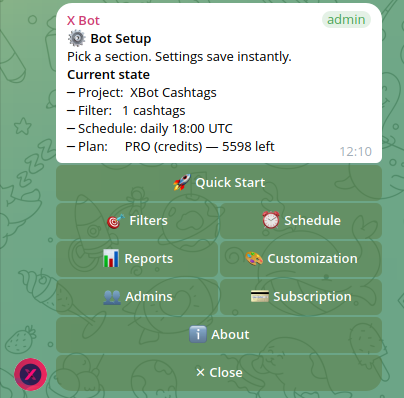
Add @BWS_X_Bot to the Telegram group where the campaign is coordinated, promote it to admin, and run /setup. Open 🎯 Filters, then 📢 Accounts, and add the X handles of every KOL you have contracted.
This is the core of the audit. The bot fetches posts from exactly these accounts, so the report is a list of what your hired people published, not a keyword search that happens to include them.
If the deal requires the post to mention something specific, add that too:
💵 Cashtagsfor a token symbol such as$YOURTOKEN🔍 Keywordsfor a campaign phrase or hashtag💬 Mentionsfor the project’s official account
How these combine matters. The default is match ANY, which means a post counts if it satisfies any of your criteria groups. That is generous, and for an audit it can be too generous: a KOL’s unrelated post would appear next to the on-brief ones. If you want the report to show only posts that satisfy the brief, read Match ANY vs Match ALL filters first, and use the 🔎 Preview query screen to check what the bot will actually search for before you rely on it.
Step 2: Match the reporting window to the contract#
A KOL deal usually has a start and end date. Tell the bot the same dates. Open 📆 Period from the main /setup screen and set an anchored period that starts on the contract start date and runs for the contract length, in UTC.
The contest guide explains the exact format and, importantly, that anchored periods roll over into a new cycle when the first one ends. That is useful for a monthly retainer and a trap for a one-off campaign, so clear the period when the deal is over. The details are in running a fixed-dates contest, and the same mechanics apply here.
If the contract is open-ended, skip the anchor and leave the default rolling window. Each report then shows recent activity, and your record is the sequence of reports rather than one cumulative total.
Step 3: Schedule reports as your paper trail#
Open ⏰ Schedule. A daily preset (09:00, 14:00, 18:00 or 22:00 UTC) gives you one dated snapshot per day. A weekly cadence, set with specific days or a cron expression, is enough for a slower campaign. There is a 12-hour minimum between fires, so hourly checks are not possible, and for an audit trail you do not need them.
Each report image the bot posts lands in the same chat where the campaign conversation already happens. That chat history is your archive. Months later, you can scroll to the report from the week in question and see what the standings were at the time.
Two practical habits make this work better:
- Use a dedicated chat or a forum topic so reports are not buried under conversation. Sending reports to a forum topic covers that.
- Pin a message at campaign start with the handles tracked, the contract window and the rule for what counts as a deliverable. Anyone reading the reports later then knows how they were produced.
Step 4: Read the report like an auditor#
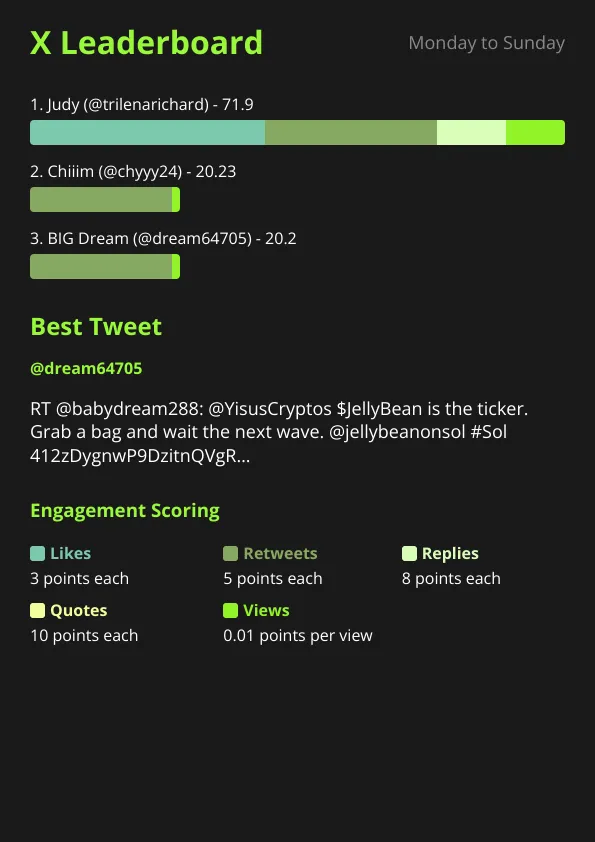
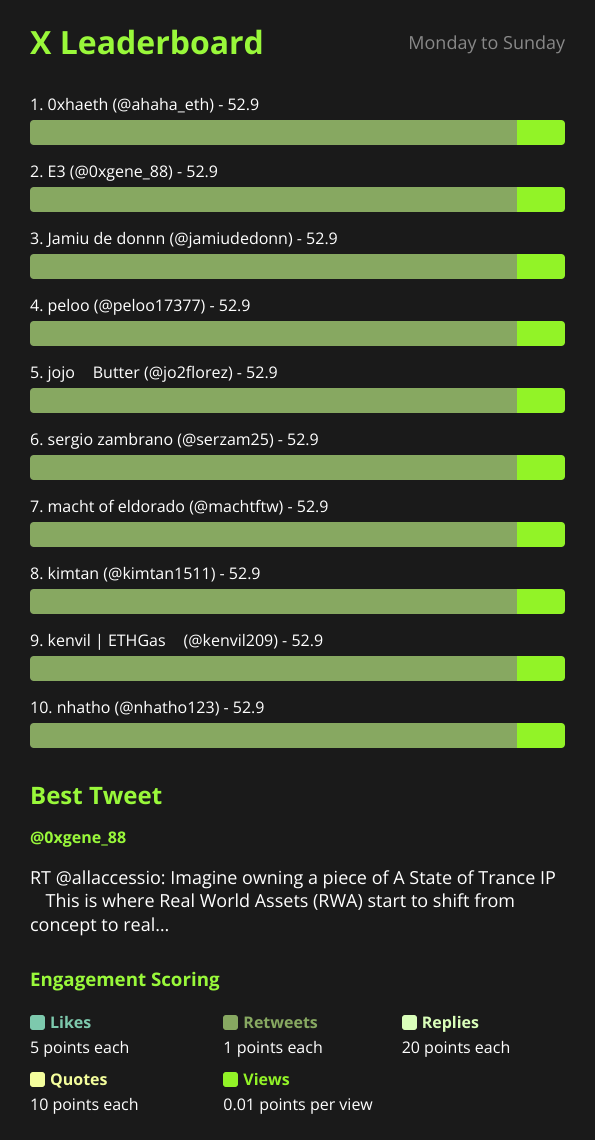
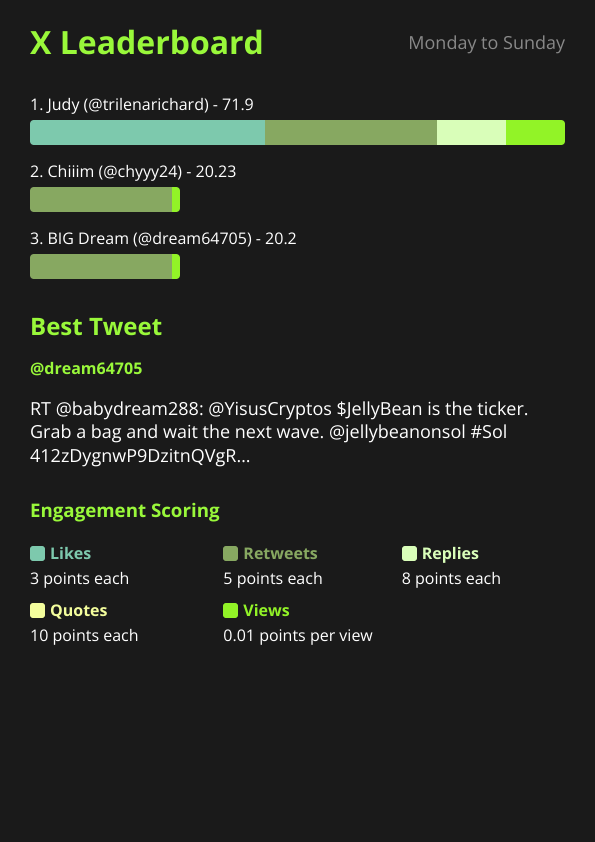
A report is a ranked list. For each tracked account it shows a score, and it highlights a best tweet for the period. Use it in three ways.
Presence. Is every contracted handle on the board? A KOL who is missing from a report covering their whole window either did not post anything that matched your filters or posted in a way the filters did not catch. Both are worth a conversation, and the second is worth a check of your own setup before you accuse anyone.
Relative performance. The score is built from per-engagement weights. The defaults are likes 3, retweets 5, replies 8, quotes 10 and views 0.01 per view. That means conversation outranks amplification, and views barely move the needle. If you pay a premium for reach, you may want different weights; the score weights guide explains how to change them under 🎨 Customization then 🏆 Points. Decide this before the campaign starts, not when you are comparing invoices.
The standout post. The best tweet picker surfaces one post per period. It is a handy shortcut for a client update, and the deep dive explains how it chooses.
A worked example of how the weights turn into a score: suppose one KOL post gets 40 likes, 10 retweets, 6 replies, 2 quotes and 5,000 views at the defaults. That is (40 × 3) + (10 × 5) + (6 × 8) + (2 × 10) + (5,000 × 0.01) = 120 + 50 + 48 + 20 + 50 = 288 points. Because the sum is the same for every KOL, you can compare them on the same footing.
Step 5: Reconcile against the deal, by hand#
This is the step the bot does not do for you, and it should not be skipped.
For each KOL, compare what the reports show against what was agreed:
| Check | Where to look |
|---|---|
| Number of posts delivered vs contracted | Count the KOL’s posts across the reports for their window |
| Posts inside the contract dates | The period set in 📆 Period and the report dates |
| Brief followed (cashtag, keyword, mention) | Your filters and the post text in the best tweet |
| Engagement threshold, if the deal has one | The KOL’s score and the underlying numbers |
Then open the actual posts on X for anything you are about to pay a large amount for. The report tells you where to look; it is not a substitute for looking. This is especially true when engagement looks unusually high for the account’s size. A score is a measure of public engagement numbers, and it cannot tell you whether those numbers are organic.
Handling disputes without drama#
The format of a report helps in a disagreement. When a KOL says they posted and the board does not show it, you have three honest explanations to work through:
- The post did not match the filters. A cashtag typo or a missing keyword is the usual cause. Fix the filter and run
⚡ Run reportto check, as described in the on-demand report guide. - The post is outside the window. Check the period dates in UTC; a post at 23:30 in the KOL’s timezone can be the next day in UTC.
- The post really was not made. In that case the report simply confirms what you already suspected.
Because the same filter and the same weights apply to everyone, the conversation is about the rules rather than about whether you are treating one KOL differently.
Keeping the team out of the numbers#
If your own team or the project’s official account posts about the campaign, add those handles to 🔇 Ignore. Ignored accounts are removed from the results, which keeps the board a list of contractors only. Combine that with 🚫 Excludes if you do not want retweets, quotes or replies counted. Both settings are covered in cleaning up noisy reports.
What it costs#
X Bot bills per post fetched. The FREE plan covers 100 posts per month as a hard cap, which suits a small campaign with a handful of KOLs. The PRO subscription is $19 per month, includes 1,000 posts, then $0.02 per post. ETH credit packs cost $0.02 per credit and never expire, which fits a single capped campaign well. Because you are fetching a known list of accounts rather than a busy cashtag, the volume is predictable, so you can estimate it as roughly the posts per KOL, multiplied by the number of KOLs. The pricing guide explains how the paid options layer together, and the pricing docs list the current numbers.
Where this approach stops#
Be realistic about what a Telegram report can prove.
- It only sees public X activity. Private accounts, deleted posts you did not capture in a report, and anything that happened off X are outside its view.
- It is not a contract or a payment tool. It does not link handles to wallets, release funds, or confirm that a post met creative requirements such as tone, disclosure labels or a required link. A human has to read the posts.
- Engagement is not authenticity. A high score is a number, not a verdict.
- Settings are per chat. Different deals with different windows and weights are best kept in separate chats, or in named filters if the reporting rules can be shared.
For the audit job, though, a dated, consistently produced record in the chat where everyone already talks is a large step up from “trust me, I posted”. If you are running the full campaign rather than just the audit, tracking X activity for a token launch shows how the same setup works from day one.
For every menu screen mentioned here, the /setup menu reference is the canonical description.
Checklist#
- Write down what counts as a deliverable before the campaign starts.
- Add every contracted handle under
🎯 Filters→📢 Accounts. - Add the cashtag, keyword or mention the brief requires, and check the match mode.
- Set
📆 Periodto the contract window in UTC, and clear it afterwards. - Set
⏰ Scheduleto a daily or weekly report. - Put team accounts on the
🔇 Ignorelist. - At payment time, reconcile the reports with the contract and open the posts you are paying most for.
Ready to track your community on X? Add @BWS_X_Bot to your Telegram group, run /setup, and your first report fires on the configured schedule. The FREE plan covers 100 posts/month — no card required.
About this article: This post was drafted with AI assistance using X Bot’s content workflow and reviewed by Nacho Coll, Founder & Principal at Blockchain Web Services (BWS), before publishing. Every product claim is checked against the live bot. Read how we use AI in our content. Spot an error? Reach us via
/setup→ ❓ Help & Support.
About the author
Nacho Coll
Founder & Principal, Blockchain Web Services
Nacho leads the Blockchain Web Services (BWS) team that builds and operates X Bot — the Telegram bot that turns X (Twitter) activity into leaderboards for crypto communities. He writes about KOL performance tracking, the X API, and running analytics bots for Telegram groups, from the operator side of the wire. Building on blockchain and decentralized infrastructure since 2019.
- verify kol deliverables
- kol payment verification
- proof of posting x
- kol campaign audit