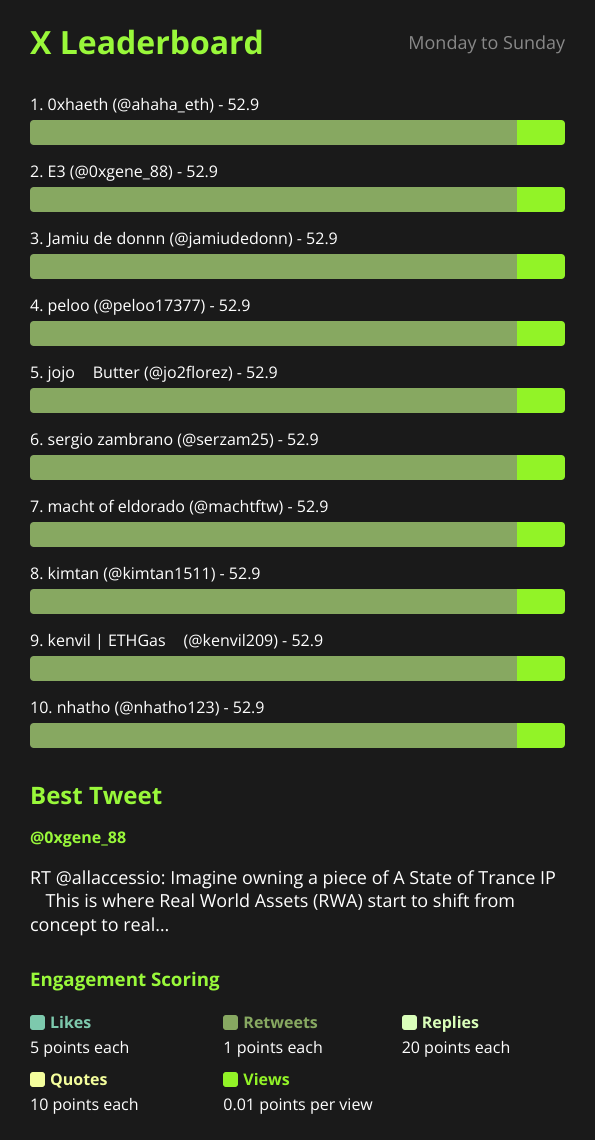
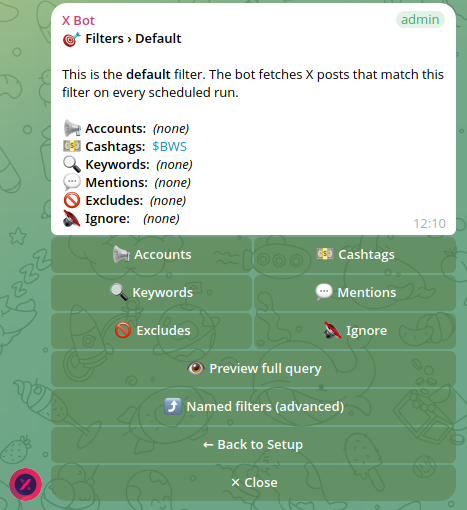
Sending X Bot Reports to a Specific Telegram Forum Topic
Running a Telegram forum with Topics for your crypto community? Pin X Bot's scheduled reports to one specific topic instead of the general chat. Here's how.
 by Nacho Coll
Nacho leads the Blockchain Web Services (BWS) team that builds and operates X Bot — the Telegram bot that turns X (Twitter) activity into leaderboards for crypto communities.
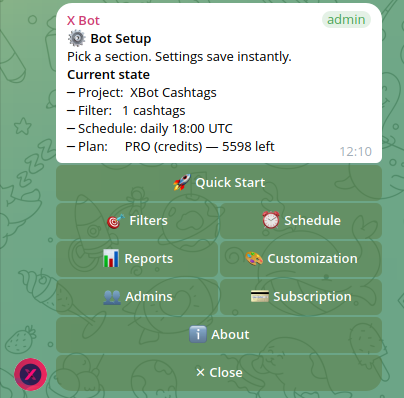
If your community outgrew a single scrolling Telegram feed, you’ve probably already turned on Topics — the forum-style threads that split one group into “Announcements,” “General,” “Price Talk,” maybe a thread per client if you’re an agency. It’s the right move once a group passes a few hundred active members. But it creates a small, specific problem for a bot like X Bot: by default, every scheduled report lands in the group’s main feed, not in whichever topic your team actually watches. In a forum with ten active threads, a report posted to the top-level chat is easy to miss entirely.
X Bot has a fix for this, and it’s narrower than you might expect — which is exactly why it’s worth explaining precisely rather than vaguely. This post covers what /set_topic actually does, what it does not do, and how to think about topic placement if you’re running a large or multi-client community.
The problem in plain terms#
Telegram’s forum-topics feature turns a group into something closer to a small Slack workspace: separate threads, each with its own unread count, each mutable independently. That’s great for humans reading the group. It’s less great for a bot posting on a schedule, because “post a message to this chat” and “post a message to this chat’s General topic” are two different Telegram API calls, and most bots — including X Bot before this feature existed — only know how to do the first one.
The practical symptom: your community manager sets up a dedicated “KOL Leaderboard” topic, expects the daily report to show up there, and instead it posts to the general thread where half the group has already muted notifications. The report technically fired. Nobody saw it.
What /set_topic actually does#
The mechanism is deliberately simple, and it’s worth being precise about it because the command has exactly one job.
- Open the topic thread where you want reports to land — the actual topic, not the group’s main view.
- Inside that topic, as a group admin, send
/set_topicwith no arguments. - The bot reads Telegram’s
message_thread_idfor that topic (and, when your message is a reply inside a topic Telegram created with a name, the topic’s name too) and saves both against your chat.
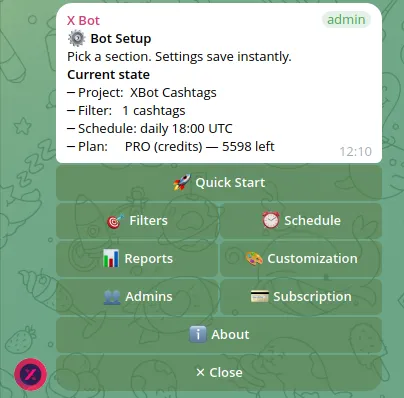
That’s it. There’s no dropdown, no picker, no button in /setup that lets you select a topic from a list — Telegram’s own API doesn’t expose a way for a bot to enumerate a chat’s topics and let you click one, so the only reliable way to capture which topic you mean is to run the command from inside it. /setup → 🎨 Customization → 💬 Topic reflects this: it’s an instruction-only screen that tells you to go run /set_topic from the topic itself, rather than a menu you tap through. If you’ve gotten used to every other /setup setting being a button press, this one will feel like a step backward — it isn’t; it’s a constraint of how Telegram exposes topics to bots, not a corner X Bot cut.
Once it’s set, confirmation is immediate: the bot replies in that same topic with either the topic’s name (“Topic set to ‘KOL Leaderboard’.”) or, if Telegram didn’t give the bot a name to work with, the raw thread ID. Either way, you now have a pinned destination.
What changes once a topic is set — and what doesn’t#
This is the part worth being exact about, because it’s easy to over-assume from the feature name alone.
What changes: scheduled reports, the “no posts found” message, the credit-exhausted paywall notice, and general report-delivery errors all get routed to your configured topic instead of the group’s main feed. Anywhere the bot would otherwise post a report-related message to “the chat,” it now posts to “the chat, in that specific thread.” That covers the actual delivery path end to end — not just the happy-path report image, but the error and paywall states too, so your team sees the full lifecycle of a report attempt in one place.
What doesn’t change: every other command still works from anywhere in the group. Setting a topic does not lock the bot, or your team, into only operating from that thread. You can still run /setup, adjust 🎯 Filters, check 👥 Admins, or pull an on-demand report from the general topic or any other thread — the pinned topic only governs where the automated report output lands, not where you’re allowed to talk to the bot. If you’ve used bots that lock themselves to one channel entirely, this is a deliberately looser design: operators wanted to be able to manage the bot from wherever they happened to be typing, and only wanted the output corralled.
What’s a one-setting affair, not a per-campaign one: if your group runs multiple named filters for different clients or campaigns, the topic setting is still a single value per chat — not per filter. Every named filter’s report fires into the same pinned topic. If you genuinely need client A’s reports in one topic and client B’s in another, that currently means separate chats per client rather than separate topics inside one chat for reporting purposes, even though named filters let you separate the tracking logic within a single group.
A worked example#
Say you run a KOL agency with one large Telegram group split into topics: “General,” “Client — TokenX,” “Client — TokenY,” and “Reports.” Your team lives in the client-specific topics for day-to-day conversation but wants a single place to check performance numbers without hunting through three threads.
Open the “Reports” topic, send /set_topic, get back “Topic set to ‘Reports’.” From then on, every scheduled fire — whichever client’s named filter triggered it — posts into that one thread. Your team mutes “General” if it’s noisy, keeps “Reports” unmuted, and the leaderboard shows up exactly where they’re looking. That’s the whole workflow: one command, run once, from the right place.
If you later want reports moved to a different topic — say you rename “Reports” to “Performance” and want to start fresh there — running /set_topic again from the new topic overwrites the previous destination. It’s a single stored value, so the newest /set_topic wins.
Where the honest limits are#
Two things worth knowing before you set this up, because they’re the kind of gap that’s better to expect than to discover mid-campaign.
First, there’s no dropdown or list to double-check which thread ID you’re currently pointed at beyond the plain-text confirmation the bot gives you at setup time and the “Current” line on the /setup → 🎨 Customization → 💬 Topic screen. If you’re not sure whether a topic is configured, that screen is the place to check — it shows the topic name (or “(default — top of chat)” if nothing’s set) rather than making you guess from report history.
Second, if you need to move reporting back to the group’s main feed after pinning it to a topic, that’s not something this article can confidently walk you through as a self-serve button press — the cleanest path is to open a ticket via /setup → ❓ Help & Support and ask the team to help you reset it. It’s a narrow edge case (most groups set a topic once and leave it), but it’s the kind of detail worth knowing before you’re mid-campaign and need it to just work.
Common setup mistakes#
Two things trip people up the first time, and both come straight from how Telegram — not X Bot — defines a topic.
Running the command from “General.” In most forum groups, the default “General” topic isn’t a real topic thread from Telegram’s point of view — it’s the group’s original feed wearing a topic-shaped label. A message sent there often doesn’t carry a message_thread_id the same way a message in a topic you explicitly created does. If you run /set_topic there and get told the command only works inside a topic chat, that’s why: pick (or create) an actual named topic instead.
A non-admin running the command. /set_topic is admin-only, same as most of /setup’s configuration commands. If someone without admin rights in the Telegram group tries it, they’ll get told only admins can set the topic, and nothing is saved. Worth confirming your community manager actually has admin rights in the group itself — separate from whatever role they hold inside X Bot’s own 👥 Admins list, which governs bot-specific permissions like who can trigger /report on demand, not Telegram group admin status.
Neither failure mode corrupts anything — the previous topic setting (if any) stays exactly as it was until a valid /set_topic call replaces it. But both are easy to mistake for a bug when they’re really just Telegram’s own topic semantics showing through.
Is this feature for you?#
If your group doesn’t use Telegram’s Topics feature at all — most smaller communities and solo-KOL setups don’t — none of this applies, and reports post to the main chat exactly as you’d expect with no extra configuration. This is specifically for groups that have already adopted forum-style topics, typically agencies managing multiple clients in one chat or larger community groups that split conversation into channels by subject. If that’s not your setup yet, there’s nothing to configure here — come back to this once you’ve turned Topics on.
Combined with a custom report schedule, topic placement is really about answering two questions for your team: when does the report fire, and where does it land. Get both right and the leaderboard becomes something people actually see, instead of one more message in a feed nobody’s watching.
For the full walkthrough of every /setup section, including where Topic sits inside Customization, see the setup menu documentation.
Ready to track your community on X? Add @BWS_X_Bot to your Telegram group, run /setup, and your first report fires on the configured schedule. The FREE plan covers 100 posts/month — no card required.
About this article: This post was drafted with AI assistance using X Bot’s content workflow and reviewed by Nacho Coll, Founder & Principal at Blockchain Web Services (BWS), before publishing. Every product claim is checked against the live bot. Read how we use AI in our content. Spot an error? Reach us via
/setup→ ❓ Help & Support.
About the author
Nacho Coll
Founder & Principal, Blockchain Web Services
Nacho leads the Blockchain Web Services (BWS) team that builds and operates X Bot — the Telegram bot that turns X (Twitter) activity into leaderboards for crypto communities. He writes about KOL performance tracking, the X API, and running analytics bots for Telegram groups, from the operator side of the wire. Building on blockchain and decentralized infrastructure since 2019.
- telegram forum topics bot
- pin telegram bot reports
- telegram topics crypto community
- large telegram group organization