What X Bot's Admin Alerts Mean (and What to Do About Each One)
X Bot DMs designated admins when a report needs attention: credits exhausted, a filter too long, or an X API error. What each alert means and the fix.
 by Nacho Coll
Nacho leads the Blockchain Web Services (BWS) team that builds and operates X Bot — the Telegram bot that turns X (Twitter) activity into leaderboards for crypto communities.
Every so often, X Bot skips the group chat and DMs you directly. If you’ve never seen one of these before, the first reaction is usually “did I break something?” Almost always, no — the bot is telling you about a condition it can’t fix on its own, and most of them take under a minute to resolve once you know what they mean.
This post is not about who receives these DMs — that’s covered in how bot-admin access works for agency teams. This one is about the DMs themselves: the specific alerts X Bot sends, what triggers each, and exactly what to do when one lands in your inbox.
Why these are private DMs, not group messages#
There’s a deliberate reason X Bot doesn’t post “credits exhausted” or “filter too long” into the group chat itself: those messages are operational, not community-facing. A client watching a public leaderboard channel doesn’t need to see internal plumbing about API query limits or billing state — that’s noise to them and, worse, it can look like the product is broken when it’s actually just waiting on someone to top up a credit pack. Routing the technical detail to admins privately, and keeping the group feed limited to actual reports, keeps the two audiences separate: the people who consume the leaderboard, and the people who maintain it.
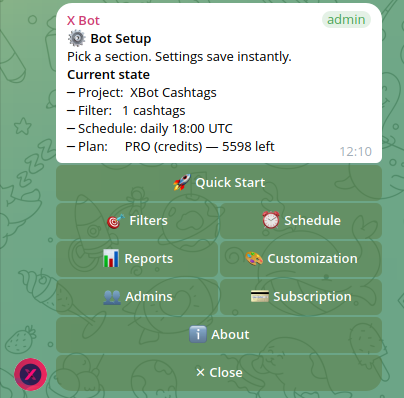
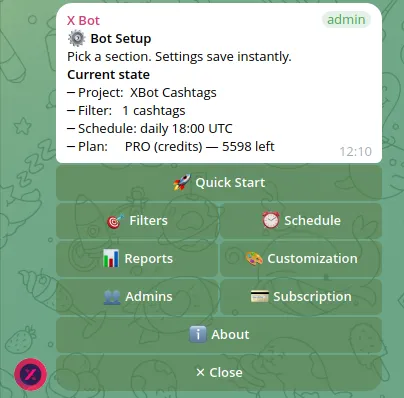
That split only works if the right people are actually reachable. Open /setup → 👥 Admins and you’ll see the note: these private messages go to whoever is on the notification-admins list. If that list is empty, X Bot falls back to every current Telegram admin of the chat. If none of those admins are reachable — bot blocked, DMs disabled — the alert doesn’t just vanish; it escalates to BWS directly so nothing about a stalled report goes unnoticed. That fallback chain is why designating a couple of specific people (rather than leaving it on “all chat admins”) is worth doing once your admin list gets long: you know exactly who’s expected to act, instead of a DM landing on someone who’s since gone inactive.
With that out of the way, here’s what each alert actually says and means.
”Credits Exhausted”#
This is the one you’ll see most. It fires when your group’s credits run out and a report can’t be generated at all — the fetch never happens.
What it means: your FREE plan’s monthly allowance, your PRO subscription’s included posts, or your ETH credit balance is at zero, and there’s nothing left to spend on this fetch.
What to do: the DM tells you directly — open /setup → 💳 Buy Credits → 💰 Buy credits / upgrade. From there you can top up an ETH credit pack or start a PRO subscription. If this is a recurring monthly pattern rather than a one-off, it’s worth reading how X Bot’s pricing actually works to figure out whether a subscription or a credit pack fits your volume better.
One detail worth knowing: this alert fires when the fetch can’t even start because the balance is already at zero going in. It’s a different situation from the next one, where the fetch does start but runs out partway through.
”Filter too long”#
This one is less common but more confusing the first time you hit it, because the fix isn’t obvious from the error alone.
What it means: the X API only accepts a search query up to 1,024 URL-encoded characters. Every tracked account (from:<handle>), cashtag, and keyword in your filter gets combined into one query, and each from:<handle> clause costs roughly 25 of those characters on its own. An agency running a filter with 35+ tracked accounts, or a project with a long list of cashtags and keywords stacked on top, can blow past that limit without anyone noticing until the bot can’t build a valid request anymore.
What to do: open /setup → 🎯 Filters and trim the list — drop a few accounts, cashtags, or keywords until the combined query fits. If you’re running one big filter for what’s really several separate campaigns, named filters split the load across multiple smaller queries instead of one that keeps growing.
Mid-fetch credit truncation#
This one is subtler: the report does render, but with fewer posts than actually exist for the period.
What it means: on the FREE plan, the 100-posts/month budget can get consumed in a single API page if your filter is broad (many tracked accounts or cashtags). When that happens mid-fetch, X Bot renders the report with whatever posts it already pulled and stops there — the rest of the matching posts for that window are skipped, not lost, but not counted either.
What to do: narrow the filter to the accounts and cashtags that matter most, or upgrade to PRO for a larger credit balance so a single busy period doesn’t eat the whole month’s budget in one page. If you’re seeing this on a FREE-plan chat with a wide filter — a dozen tracked accounts plus several cashtags, for instance — it’s a reliable early sign that the chat has outgrown the FREE tier’s 100 posts/month, well before the monthly total actually hits zero.
”No Posts Found”#
What it means: the fetch ran fine, but nothing matched your filter for the configured report period. The DM includes the exact filter and date range that came up empty, so you can check whether the filter is actually wrong or the community was just quiet.
What to do: if the filter looks right, this is a real signal — nobody posted, or nobody used the tracked cashtag/keyword during that window. If it looks wrong (a typo’d handle, a cashtag that changed after a rebrand), fix it under /setup → 🎯 Filters. Tracking a pre-launch community before you have a cashtag covers a related case: filters that are too narrow because the thing you’re tracking doesn’t exist yet.
X API authentication or authorization errors#
What it means: the X (Twitter) API rejected the request itself — not your filter, not your credits. This usually points to something on the API-access side: developer-account configuration, project setup, or an API tier that doesn’t cover the request being made.
What to do: there’s genuinely not much to fix on your end here. Forward the error details from the DM to /setup → ❓ Help & Support so the team can check the underlying API access — how support tickets work covers what happens after you open one. This is one of the few alerts where the honest answer is “wait for BWS to fix it,” not “change a setting” — nothing under 🎯 Filters or 💳 Buy Credits will resolve an API-side rejection.
System errors#
A generic “something went wrong” DM with a support link. If you see this once, it’s often transient — a fetch will usually succeed on the next scheduled run. If it repeats, open a support ticket with the chat ID from the DM so the team can look at what happened on that specific fetch. The troubleshooting docs cover a broader set of common issues beyond what triggers an automatic DM, so it’s worth a check before filing a ticket for something that might already have a documented fix.
Auto-relay pausing for the month#
If you’re using 📡 X Posts Auto-relay and the group’s free relay credits run out, relaying pauses until the next monthly reset — no new posts get forwarded into the chat until then. X Bot sends exactly one DM about this per chat per calendar month, deliberately: the underlying check runs every few minutes, and a DM on every check would bury you in duplicate alerts for a single ongoing condition. If you need relaying to keep running without interruption, /setup → 💳 Buy Credits → PRO removes the monthly relay cap.
What these alerts have in common#
None of them are decorative. Every one exists because a scheduled report either didn’t run, ran with less data than expected, or a paid feature paused — and the bot has no other channel to tell you besides a DM to whoever’s on the notification list. Most resolve with a single trip to one of two places: /setup → 🎯 Filters if the problem is what you’re tracking, or /setup → 💳 Buy Credits if the problem is how much budget is left to track it with. The full menu structure behind both is covered in the setup menu docs if you want the reference rather than the walkthrough.
If you’re getting alerts you don’t understand even after reading this, or one keeps recurring without an obvious fix, that’s exactly the kind of thing worth a support ticket rather than guessing. It’s also worth periodically checking who’s actually on your notification-admins list under /setup → 👥 Admins — an alert that’s technically “sent” but lands on someone who left the project months ago is functionally the same as no alert at all.
Ready to track your community on X? Add @BWS_X_Bot to your Telegram group, run /setup, and your first report fires on the configured schedule. The FREE plan covers 100 posts/month — no card required.
About this article: This post was drafted with AI assistance using X Bot’s content workflow and reviewed by Nacho Coll, Founder & Principal at Blockchain Web Services (BWS), before publishing. Every product claim is checked against the live bot. Read how we use AI in our content. Spot an error? Reach us via
/setup→ ❓ Help & Support.
About the author
Nacho Coll
Founder & Principal, Blockchain Web Services
Nacho leads the Blockchain Web Services (BWS) team that builds and operates X Bot — the Telegram bot that turns X (Twitter) activity into leaderboards for crypto communities. He writes about KOL performance tracking, the X API, and running analytics bots for Telegram groups, from the operator side of the wire. Building on blockchain and decentralized infrastructure since 2019.
- x bot admin alerts
- telegram bot notification meaning
- credit exhausted alert telegram
- x bot troubleshooting notifications