Benchmark Competitor Crypto Projects on X With a Telegram Leaderboard
Track competitor project accounts and cashtags on X with a named filter, then compare their engagement to yours in a scheduled Telegram leaderboard report.
 by Nacho Coll
Nacho leads the Blockchain Web Services (BWS) team that builds and operates X Bot — the Telegram bot that turns X (Twitter) activity into leaderboards for crypto communities.
Most crypto teams track their own X numbers and guess at everyone else’s. Somebody on the team says “Project Y is getting way more engagement than us lately,” and the only evidence is a feeling from scrolling the timeline. That is not much to build a content plan on, and it is not much to show a founder who asks whether the campaign is working.
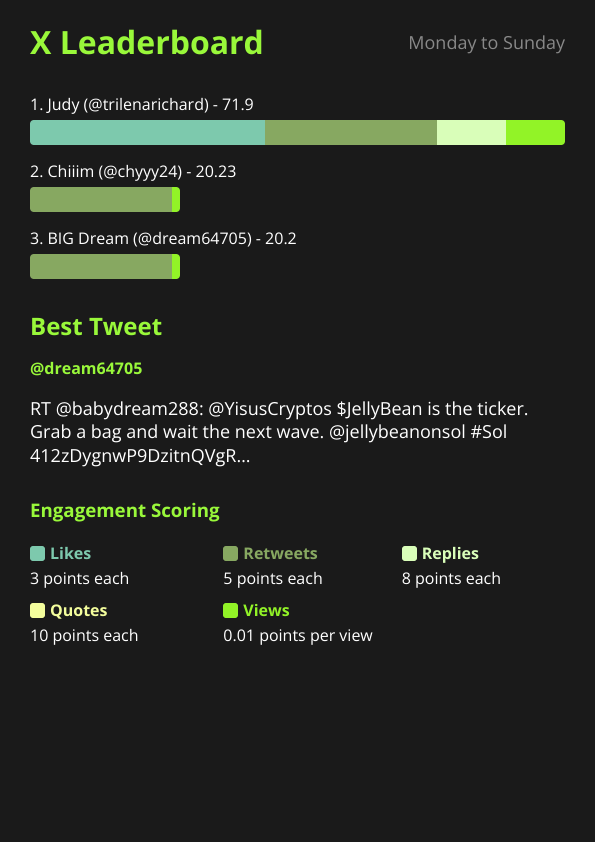
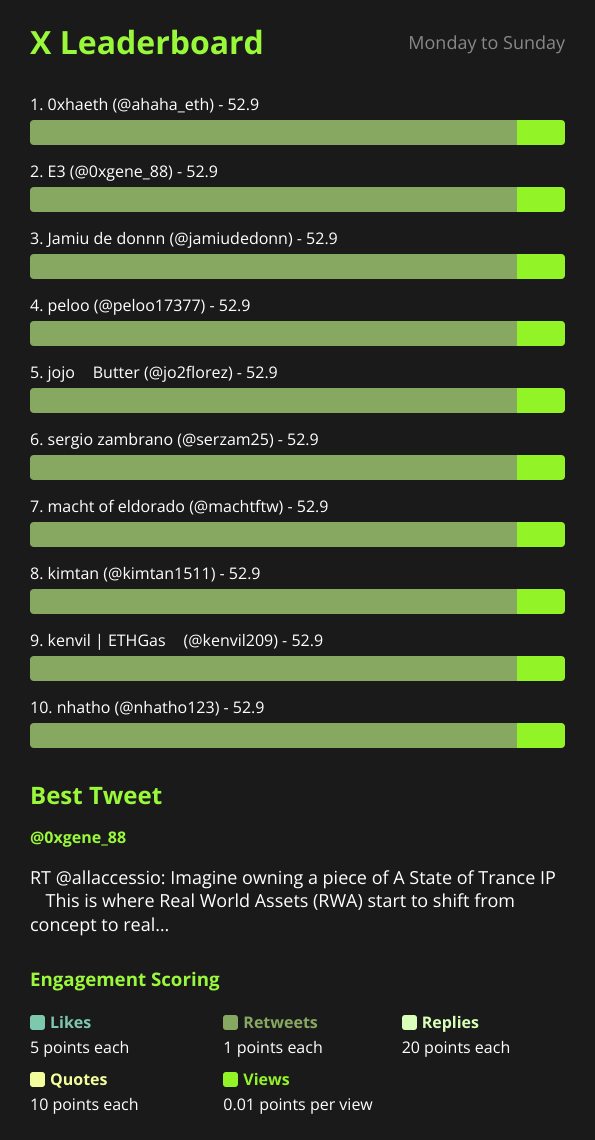
X Bot was built to score your community’s posts, but nothing stops you from pointing the same machinery at other people’s accounts. A named filter that tracks three or four competitor handles produces the same ranked report you already get for your own project: a score per account, a best tweet of the period, and a leaderboard image, posted into a Telegram chat on a schedule. This guide shows how to set that up, what the numbers can honestly tell you, and where the approach stops being useful.
What you are actually building#
The idea is simple: a second report, separate from your main one, whose “users” are competitor accounts instead of community members.
- Your normal chat keeps its default filter (your community, your cashtag, your KOLs).
- A named filter tracks the competitor accounts.
- Both reports fire on the same schedule, so you can read them side by side.
Because every account in the competitor filter is scored with the same weights, the leaderboard answers a narrow but useful question: over this period, whose posts earned the most weighted engagement? Nothing more exotic than that.
Step 1: Use a private chat, not your community group#
Decide where the benchmark report lives before you build it. The report image is posted into whatever chat you configure, so if you add the competitor filter to your public community group, every member sees the comparison.
For most teams that is the wrong default. A better arrangement:
- Create a small Telegram group for the marketing or community team.
- Add @BWS_X_Bot and promote it to admin.
- Run
/setupthere and treat that chat as your internal analytics room.
If you already run several campaigns from one chat, the same logic from our guide on tracking multiple KOL clients in one Telegram group applies: one chat, one named filter per question you want answered.
Also keep in mind the public dashboard at xbot.ninja. A chat is exposed there only when it clears the visibility thresholds (a top score of at least 300, at least 5 tracked posts, and at least 2 active users in the current month). A competitor benchmark chat that tracks several accounts could clear those numbers, so if you want it to stay internal, read Putting Your Project on the Public X Bot Dashboard first and make sure you are comfortable with what that page says.
Step 2: Create the competitor filter#
Open /setup in the internal chat and go to 🎯 Filters → ⤴ Named filters → ➕ Add named filter. Give it a name you will recognize in the report, such as “Competitors”.
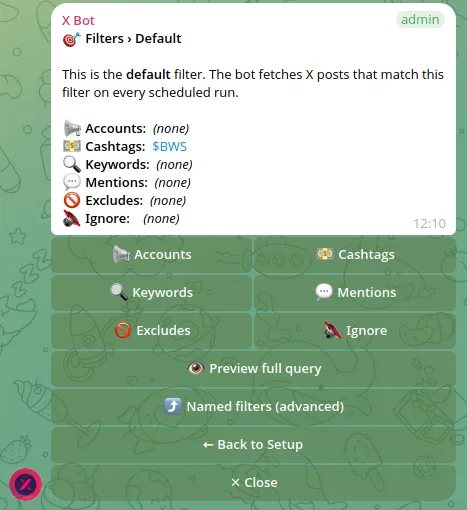
Then fill in what to track. There are two useful angles, and they answer different questions.
Accounts. Under 📢 Accounts, add the X handles of the projects you want to compare against. This tells you how loud each project’s own account is, including whatever its team posts. It does not tell you what the community says about them.
Cashtags. Under 💵 Cashtags, add their tickers, for example $COMPETITOR. This pulls in posts from anyone who mentions the cashtag, which shows how much organic conversation each rival generates. The leaderboard then ranks the people posting about that token, not the project’s own handle.
You can use one angle or both. They behave differently, so we usually recommend keeping them in separate named filters: one called “Competitor accounts” and one called “Competitor cashtags”. Mixing them in a single filter blends team-authored posts with community chatter and makes the ranking harder to read. If you are unsure how multiple conditions combine inside one filter, the explanation in Empty X Bot Report? Match ANY vs Match ALL Filters Explained is worth five minutes before you save.
Step 3: Keep the scoring identical#
A benchmark is only meaningful if everyone is measured by the same rules. Scoring weights are configured per chat, not per filter, so within one chat your competitor filter and your own filters share a single set of weights. That works in your favor: it removes the temptation to quietly tune the formula until your project looks good.
The defaults are likes=3, retweets=5, replies=8, quotes=10, views=0.01. Conversation (quotes and replies) counts for more than amplification (retweets), and raw views count for almost nothing. That is a sensible lens for a benchmark, because it rewards posts people respond to rather than posts that merely got shown to a lot of timelines. If you want to change them, do it once, deliberately, and write down the new numbers so the history stays comparable. Our guide to customizing leaderboard score weights covers the options and the tradeoffs.
A small worked example with the defaults. Suppose a competitor posts one tweet that earns 120 likes, 40 retweets, 15 replies, 6 quotes and 30,000 views:
- Likes: 120 x 3 = 360
- Retweets: 40 x 5 = 200
- Replies: 15 x 8 = 120
- Quotes: 6 x 10 = 60
- Views: 30,000 x 0.01 = 300
The total is 360 + 200 + 120 + 60 + 300 = 1,040 points for that single tweet.
Notice how large the views term is on a big post: 300 of the 1,040 points. That is why two accounts with similar audiences can swap places when one of them gets a single viral post. Keep that in mind when you read the leaderboard.
Step 4: Put it on the same schedule#
Open ⏰ Schedule and pick a cadence. For a benchmark, a daily report is usually noise and a weekly rhythm is more useful, since competitor posting is bursty and a single day proves little. The schedule menu supports daily presets (09:00, 14:00, 18:00 and 22:00 UTC), custom times, specific days, or a full cron expression, with a 12-hour minimum interval between fires. The details are in Custom Report Schedules: Cron Expressions for X Bot.
If you want a report right now to sanity-check the setup, use 📊 Reports → 🔄 Generate Report instead of waiting for the next fire.
How to read the report without fooling yourself#
The leaderboard is easy to read and easy to over-read. A few cautions we would give a colleague.
Score is not sentiment. A competitor can top the board because people are furious at them. The bot counts engagement, not approval. Open the best tweet of the period and read the replies before drawing any conclusion.
Account size dominates. A project with a large follower base will usually outscore a small one on raw engagement even if its content is worse. A benchmark against a competitor ten times your size tells you about the gap, not about what to copy.
One tweet can swing a period. As the worked example shows, a single viral post can account for most of an account’s score. Look at the trend across several reports before reacting to one.
Engagement is only part of the picture. The bot does not see follower growth, link clicks, conversions or anything off X. Do not present this report as “who is winning the market.”
Bought engagement looks identical. If a rival pays for likes or runs engagement pods, the numbers still count. The best tweet picker, covered in How the “Best Tweet of the Day” Picker Works in X Bot, is a reasonable place to sanity-check whether the top post looks organic.
Used with those limits in mind, the report is good at a few things: spotting a competitor’s content format that is clearly working, noticing when a rival goes quiet, and giving your team a shared, dated reference instead of anecdotes.
Cleaning up the competitor report#
Cashtag tracking in particular can pull in spam. If a bot account keeps appearing in the competitor leaderboard, add it to the ignore list under 🎯 Filters, and use the retweet, quote and reply excludes if you only want original posts. The reasoning, and the tradeoffs of each toggle, are in Cleaning Up Noisy X Bot Reports: Excludes & Ignore List.
What it costs#
X Bot bills on posts fetched, not on the number of filters or chats. The FREE plan includes 100 posts per month as a hard cap, which is enough to try a small account-based benchmark but will not last long if you track busy cashtags. Past that, the PRO subscription and ETH credit packs are described on the pricing docs page and in X Bot Pricing: FREE, ETH Credits, or $19/Month. Tracking a handful of competitor handles weekly is a small volume; tracking a popular cashtag daily is not. Check 💳 Buy Credits for your plan summary before you leave a broad filter running.
When X Bot is the wrong tool#
Be honest with yourself about what you need.
- If you need follower-growth curves, sentiment analysis, share-of-voice across thousands of accounts, or historical data from before you started tracking, a dedicated social analytics platform is the better fit. X Bot only sees what it fetches from the moment the filter exists.
- If you only care about one competitor, occasionally, opening their profile is faster than building a filter.
- If you cannot keep the report private, think twice. Putting a rival’s numbers next to yours in a public group invites a discussion you may not want.
For a team that wants a lightweight, recurring, shared comparison inside the chat where the marketing conversation already happens, it fits well. For the setup details behind any menu mentioned here, see the setup menu documentation.
Ready to track your community on X? Add @BWS_X_Bot to your Telegram group, run /setup, and your first report fires on the configured schedule. The FREE plan covers 100 posts/month — no card required.
About this article: This post was drafted with AI assistance using X Bot’s content workflow and reviewed by Nacho Coll, Founder & Principal at Blockchain Web Services (BWS), before publishing. Every product claim is checked against the live bot. Read how we use AI in our content. Spot an error? Reach us via
/setup→ ❓ Help & Support.
About the author
Nacho Coll
Founder & Principal, Blockchain Web Services
Nacho leads the Blockchain Web Services (BWS) team that builds and operates X Bot — the Telegram bot that turns X (Twitter) activity into leaderboards for crypto communities. He writes about KOL performance tracking, the X API, and running analytics bots for Telegram groups, from the operator side of the wire. Building on blockchain and decentralized infrastructure since 2019.
- competitor analysis crypto x
- benchmark crypto projects twitter
- track competitor x accounts
- crypto competitor monitoring telegram