Run a Weekly Ambassador Leaderboard for Your Crypto Community on X
Turn community X posts into a weekly ambassador leaderboard in Telegram: pick a rolling window, tune the weights, ignore bad actors and reward the right people.
 by Nacho Coll
Nacho leads the Blockchain Web Services (BWS) team that builds and operates X Bot — the Telegram bot that turns X (Twitter) activity into leaderboards for crypto communities.
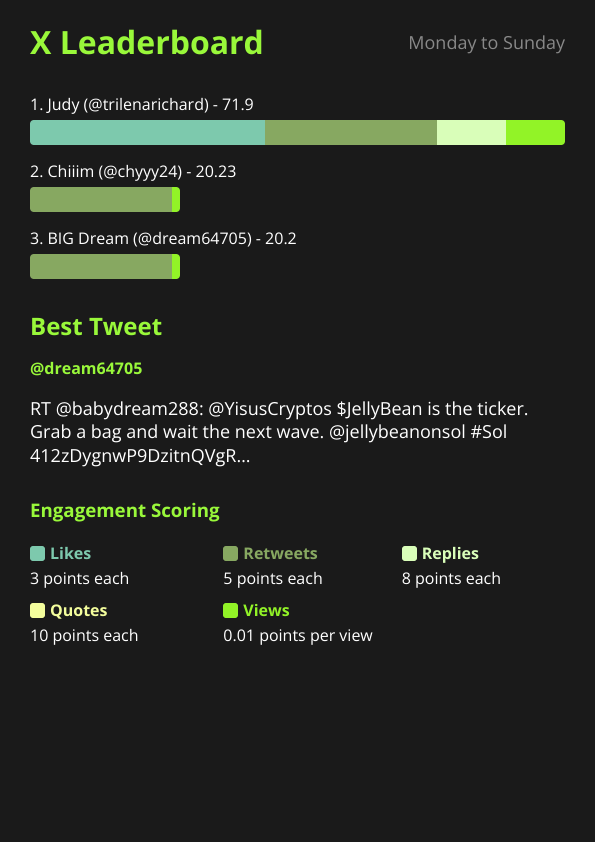
Most crypto projects with an ambassador program run it the same way. There is a Telegram group, a pinned message that says “post about us on X and tag the project”, and a community manager who, once a week, scrolls through the timeline trying to remember who posted what. Rewards go to whoever the manager happened to notice. The people who noticed they were not being noticed quietly stop posting.
A weekly leaderboard fixes the part that is purely bookkeeping. It does not decide who deserves a reward, but it gives you a consistent, visible list to start from, and it shows your ambassadors that the effort is being counted. This guide walks through setting that up with X Bot so that a ranked report lands in your community chat every week without anyone assembling it by hand.
It is aimed at ongoing programs. If you want a contest with a hard start date and a final standing, read how to run a fixed-dates X engagement contest instead. The two setups differ in one important place, the period, and we flag it below.
What an ambassador leaderboard should and should not do#
Be clear about the job before you configure anything.
It should answer “who posted about us this week, and how did it perform?” in a way everyone in the chat can see and nobody has to argue about.
It should not be treated as a verdict on quality. X Bot scores engagement: likes, retweets, replies, quotes and views, combined with weights. A thoughtful thread that reaches twenty informed readers can score below a meme that reaches two thousand. The score tells you what the audience reacted to, not whether the post was accurate, on brand or compliant. Treat the leaderboard as the shortlist and keep a human in the loop for the final call.
X Bot also does not pay anyone. It produces the ranking. Distributing tokens, points or whatever else you reward with is a separate step on your side.
Step 1: Add the bot and decide where reports go#
Add @BWS_X_Bot to your community group, promote it to admin, and run /setup. If this is your first time, the installation guide covers the permissions in detail.
Think for a moment about where the weekly report should land. A busy community chat can bury it within minutes. If your group uses forum topics, you can send reports to a dedicated topic, which we cover in sending X Bot reports to a specific forum topic. A pinned topic called “Weekly Ambassadors” is a surprisingly effective motivator.
Step 2: Choose what counts as an ambassador post#
Open /setup and tap 🎯 Filters. The filter decides which posts are eligible at all, and for an ambassador program you have two realistic choices.
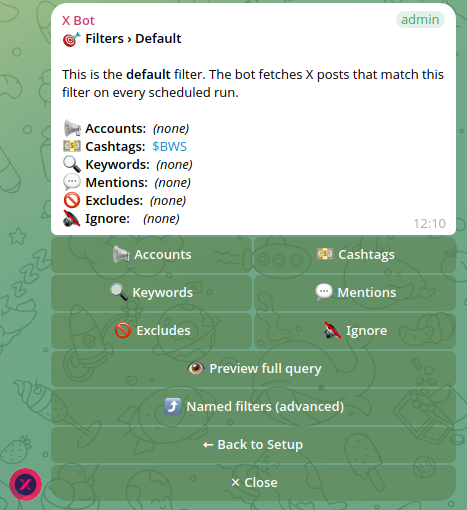
Track a known list of accounts. Use 📢 Accounts to add the handles of your ambassadors. This is the cleanest option when membership is curated: people apply, you approve, you add the handle. Nobody outside the list can appear, and nobody inside it can be missed because they forgot a hashtag.
Track a cashtag or keyword. Use 💵 Cashtags for $YOURTOKEN or add a campaign keyword. This is better for open programs where anyone can take part, but it also lets in everyone who mentions you, including critics and spam accounts. If you go this route, plan to use the ignore list (Step 5).
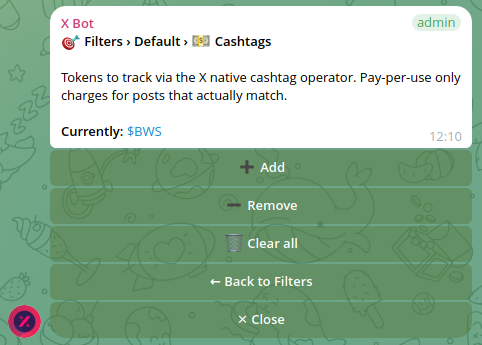
A word of caution on combining them. When you mix accounts and cashtags in one filter, the way the conditions combine matters a great deal, and a mismatch is the usual reason for an empty report. Read Match ANY vs Match ALL filters explained before you stack several conditions.
Step 3: Use a rolling window, not an anchored one#
This is the main difference from a contest. Tap 📆 Period in /setup. The screen offers three rolling presets: 7 days, 14 days and 30 days. For a weekly ambassador leaderboard, pick 7 days. That is also the default if you have never set a period.
A rolling window means each report looks at the last seven days ending at the moment the report fires. Old posts age out automatically, so a strong week from two months ago cannot keep someone on top. Everyone competes on recent activity, which is what an ongoing program wants.
Do not use the anchored DD/MM/YYYY Ndays form here unless you really want fixed cycles that reset to zero. An anchored cycle grows from empty on its first day, so a report in the middle of a cycle shows only part of a week. That suits a contest and confuses an ambassador program.
One more thing worth knowing: the period and the schedule are independent. The period decides which posts are in the report. The schedule, covered next, decides when the report is posted.
Step 4: Set the weekly schedule#
Tap ⏰ Schedule. The presets are daily (09:00, 14:00, 18:00 and 22:00 UTC), and you can also send a custom time, specific days of the week, or a full cron expression. All times are UTC, and the minimum interval between fires is 12 hours.
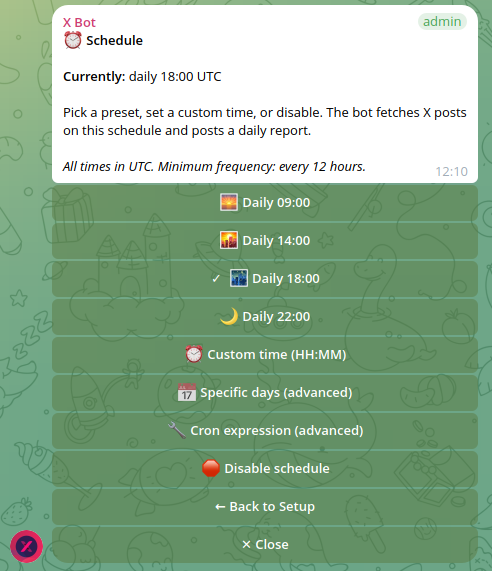
For a weekly leaderboard, choose a single day and a single time. A Monday morning post works well because it gives people a fresh week to aim at and gives you the weekend to review the standings before announcing rewards. If you are not sure how to express “Mondays at 09:00 UTC” as a cron expression, the custom schedules guide has worked examples.
A tempting alternative is to post daily with a seven-day rolling window. That gives you a live-feeling leaderboard, with the standings shifting a little each morning, and it can build momentum midweek. The cost is more fetches, which matters if you pay per post, and a risk that the chat stops paying attention to a message that appears every day. Weekly is calmer and cheaper. Start there and add a second, more frequent report only if the community asks for it.
You can also pull a report whenever you like without waiting for the schedule, using ⚡ Run report in /setup. That is handy for a mid-week check before you tell anyone how they are doing.
Step 5: Keep the board honest with the ignore list and excludes#
Anything that rewards engagement attracts people who will manufacture it. Expect, within a few weeks, some version of one account quote-tweeting every project post with a single emoji, or an ambassador whose score comes almost entirely from retweeting the team’s announcements.
You have two tools inside 🎯 Filters:
- Excludes remove a post type (retweets, quotes or replies) for every account the filter tracks. If you want to reward original content, excluding retweets is the usual move. It is blunt, because it applies to everyone in the filter.
- The ignore list removes one specific account entirely. Use it for a confirmed bad actor, or for someone who has left the program but whose handle still matches your filter.
Our guide on cleaning up noisy reports covers both in depth. The short version for ambassador programs: do not turn on excludes in week one. Run a couple of reports, look at what is actually rising to the top, and only then remove the specific pattern that is distorting the ranking.
Step 6: Tune the weights to reward what you want#
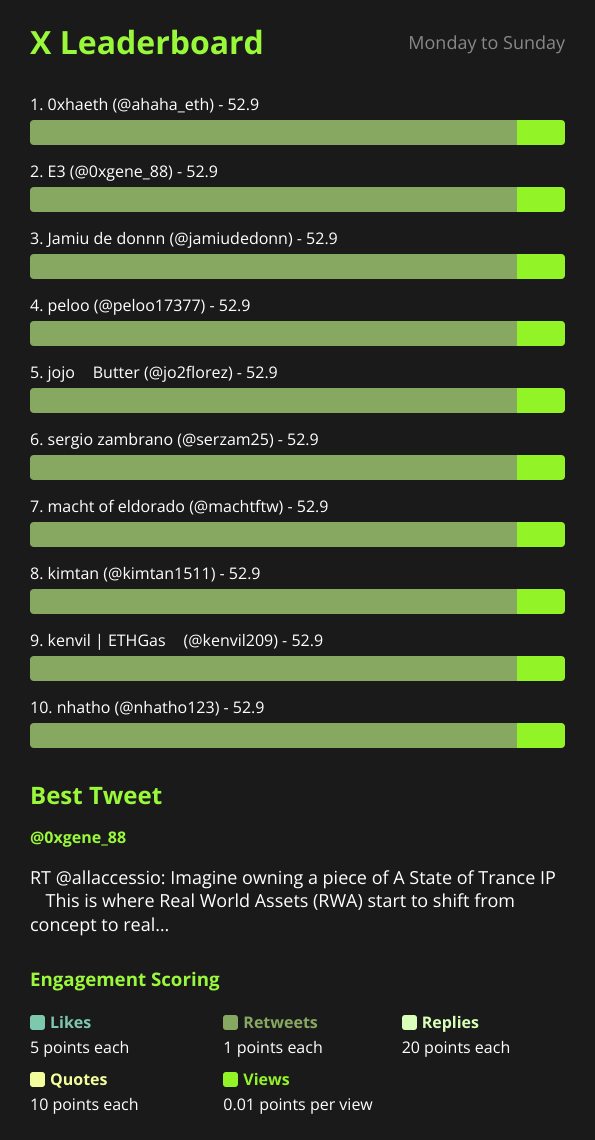
The default weights are likes=3, retweets=5, replies=8, quotes=10, views=0.01. Notice the ordering. Conversation (quotes and replies) is worth more than amplification (retweets), and views count for very little. That is a sensible bias for a community program, because it favours posts that start discussion over posts that merely get shown to many people.
Here is a worked example using those defaults. Suppose an ambassador’s week of tracked posts adds up to 40 likes, 6 retweets, 5 replies, 2 quotes and 4,000 views:
- Likes: 40 x 3 = 120
- Retweets: 6 x 5 = 30
- Replies: 5 x 8 = 40
- Quotes: 2 x 10 = 20
- Views: 4,000 x 0.01 = 40
Total: 120 + 30 + 40 + 20 + 40 = 250 points.
If your program is more about reach, you can raise the weight on views or retweets. If it is about discussion, raise replies and quotes. Weights are set per chat from /setup under 🎨 Customization, and the full walkthrough is in customizing leaderboard score weights. Whatever you choose, tell your ambassadors the formula. A scoring system people understand is one they stop arguing about.
While you are in 🎨 Customization, set your project name, logo and colors so the report looks like part of your program rather than a generic bot output. You can also choose how many people appear on the leaderboard, from 1 to 10. Ten is a good number for a community of dozens of ambassadors; a smaller board such as the top five reads as more exclusive and fits a tight program.
Step 7: Review before you reward#
When the Monday report arrives, resist the urge to forward the ranking straight to whoever pays out. Take five minutes first:
- Look at the best tweet. Every report highlights the highest-scoring tracked post of the period. Read it. If it is the kind of content you want more of, say so in the chat. If it is off-brand, you have learned something about your weights. The best tweet picker deep dive explains how it is chosen.
- Check for coordinated activity. Several ambassadors engaging only with each other can lift scores without reaching anyone new. The report will not flag this for you, so it is a human judgement.
- Confirm the posts are real deliverables. If rewards are tied to specific requirements, such as disclosure of sponsorship, use a proof checklist. We cover one in verifying KOL deliverables before you pay.
Making it visible beyond your chat#
If your community clears the visibility thresholds (top score of at least 300, at least 5 tracked posts and at least 2 active users in the current month), its leaderboard can appear on the public dashboard at xbot.ninja. For an ambassador program that is a free recognition channel: people like seeing their handle on a page they can link to. It is not required, and if you would rather keep things private, the report in your chat is all you need.
Costs and limits to plan for#
The FREE plan covers 100 posts per month with a hard cap, which is enough to try a small program but will not stretch far if you track many ambassadors weekly. The PRO subscription is $19 per month and includes 1,000 posts a month, with metered overage after that at $0.02 per post. You can also buy ETH credit packs at $0.02 per credit that never expire. How X Bot pricing works explains how the paths layer, and you can check what you have used at any time with the credits view described in checking your credit usage.
When X Bot is the wrong tool#
Be honest about the fit:
- If your ambassadors mostly work on platforms other than X, this leaderboard will miss most of their effort.
- If rewards depend on content quality rather than reaction, an engagement score is only a starting point and a manual review will do the real work.
- If you only have three or four ambassadors who all post a few times a month, a shared spreadsheet may be enough. We compare the two honestly in X Bot vs manual spreadsheet tracking.
For anything larger, where the weekly manual tally is the part that never quite gets done, the automation pays for itself in consistency alone.
If something does not behave as described here, the troubleshooting guide covers the usual causes before you need to open a ticket.
Ready to track your community on X? Add @BWS_X_Bot to your Telegram group, run /setup, and your first report fires on the configured schedule. The FREE plan covers 100 posts/month — no card required.
About this article: This post was drafted with AI assistance using X Bot’s content workflow and reviewed by Nacho Coll, Founder & Principal at Blockchain Web Services (BWS), before publishing. Every product claim is checked against the live bot. Read how we use AI in our content. Spot an error? Reach us via
/setup→ ❓ Help & Support.
About the author
Nacho Coll
Founder & Principal, Blockchain Web Services
Nacho leads the Blockchain Web Services (BWS) team that builds and operates X Bot — the Telegram bot that turns X (Twitter) activity into leaderboards for crypto communities. He writes about KOL performance tracking, the X API, and running analytics bots for Telegram groups, from the operator side of the wire. Building on blockchain and decentralized infrastructure since 2019.
- crypto ambassador program leaderboard
- community rewards x posts
- weekly twitter leaderboard telegram
- ambassador program tracking